Koha 26.05: Managers' Overview
This article is intended for managers who want to evaluate how select new features may impact day-to-day operations, and whether staff training may be needed to take advantage of enhancements in this upgrade. It is not intended to replace resources on the 26.05 Upgrade Hub, community release notes, the manual, Monday Minutes, the What’s New webinar, or other articles discussing upgrade features in the ByWater Solutions Knowledge Base, and it does not cover every bug, new feature, and enhancement. Rather, it is a selection that we anticipate may lead to workflow changes or about which managers are likely receive questions from staff.
We recommend reviewing the notes below and evaluating internal policies and practices to determine whether workflow changes or staff training are necessary.
We recommend reviewing the notes below and evaluating internal policies and practices to determine whether workflow changes or staff training are necessary.
Bugs with an asterisk* have been backported to a 25.11.xx version of Koha, so your library may have already encountered and evaluated them.
If your library has questions about any of the features in 26.05, please submit a ticket with 26.05 in the subject and we will be happy to help!
If your library has questions about any of the features in 26.05, please submit a ticket with 26.05 in the subject and we will be happy to help!
We encourage you to use the Table of Contents to jump to a
specific section or Control+F to search for keywords.

If you would like to be notified when this article is updated with additional features or bugs, please click 'Follow' under the 'On this page' table of contents on the right-hand side of the screen.
Accounting
Bug 40255 - Allow custom debit descriptions
This enhancement adds the ability to use a custom description for debit types so that the 'Description' column in patron accounts is populated. By default, the 'Description' column on accounting screens in the staff interface and in the OPAC are blank. Here is an example of a charge in the staff interface:
In the OPAC, the same transaction appears as:
This enhancement allows libraries to add text to the 'Description' column with additional information about the charge. It's especially useful for system-default debit types, since the text that appears in their 'Account type'/'Type' column cannot be edited.
To add custom debit descriptions, start by identifying the debit type your library would like to modify. In Administration > Debit types, find the code for the debit type whose description you wish to edit (example: ACCOUNT):
Next, in Tools > Notices and slips, create a new notice with the following settings:
- Module: Debit description (custom)
- Code: the code for the notice chosen above (ACCOUNT in this example)
- Name: anything descriptive that will help staff identify the 'notice' in the future (for example: Custom ACCOUNT description)
- In the email tab:
- 'Message subject' must be filled in, but will not show anywhere
- Add your description in the body of the email tab (for example: 'Annual fee for non-resident members'):
- Note that you can use Template Toolkit here - for instance, "$[% accountline.amount %] (includes $[% accountline.amount * 0.1 %] tax)" tells Koha to pull in the enrollment fee and calculate how much of it is tax, which will display as "$100 (includes $10 tax)" for a fee of $100
Once this is set up, the custom description will show as follows when that debit type is charged to a patron:
Note that the custom description will not replace the description from Administration > Debit types on receipts - it is only for accounting tables in the staff interface and OPAC. Also note that at this time, custom debit descriptions are system-wide and cannot be configured per library.
Acquisitions
Bug 38262 - Add additional fields to vendors
Libraries can now add additional fields to vendor records and optionally make them searchable and repeatable. These fields can accept free text or use authorized values for standardization.
Uses include recording additional account numbers, noting whether the vendor provides MARC records or uses EDI, listing genres or material types purchased from the vendor, or any other type of information your library would like to track in a dedicated field.
To set up additional fields, start in Administration > Additional fields > select Vendors (aqbooksellers:vendor) under the Acquisitions group:
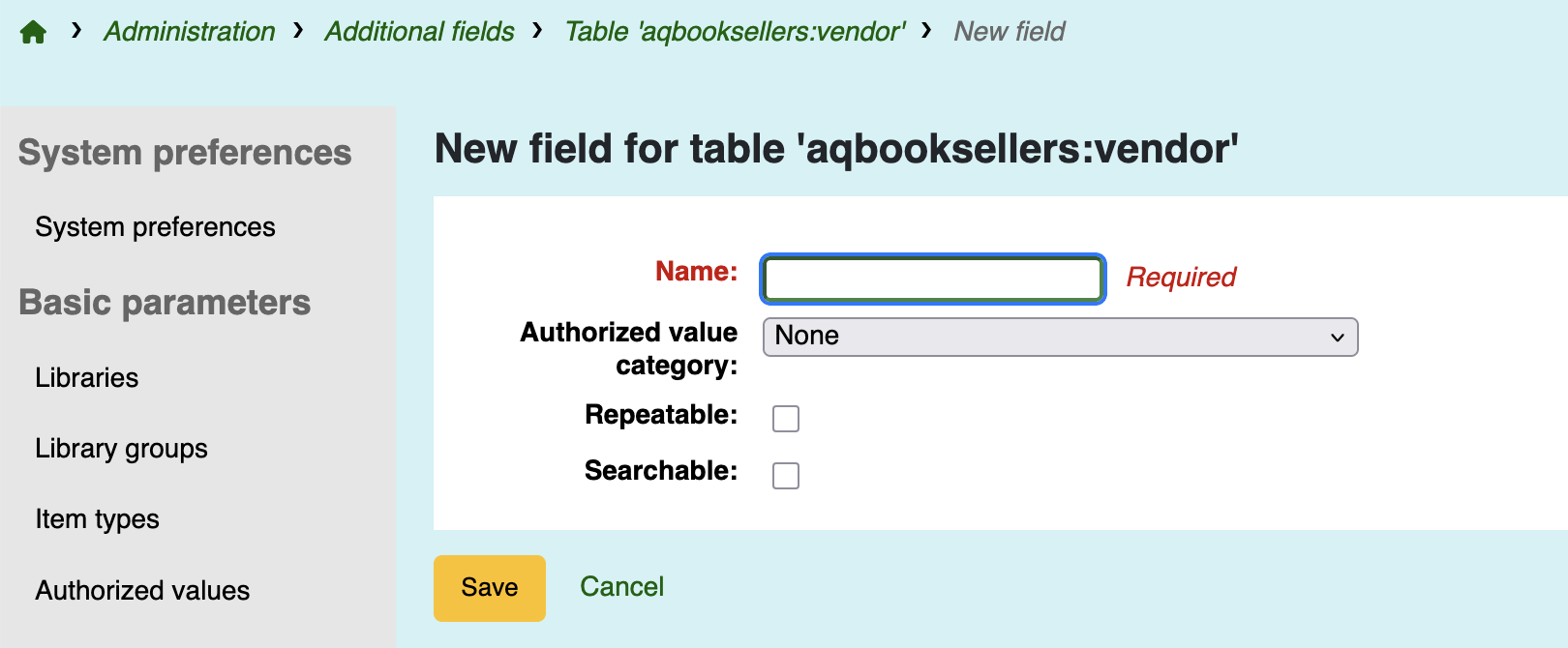
The Name is the label that will show in the vendor record in Acquisitions. The field will be free text if no authorized value category is selected. If the content should be selected from a predefined list, you can choose an existing authorized value category (such as YES_NO) or create a new one in Administration > Authorized values. If the field should be searchable and/or repeatable, check each box as applicable.
In the vendor record, your custom fields will show in the Details section under an Additional fields header:
If a field is marked 'Searchable', it will show as a column in the vendor search results table:
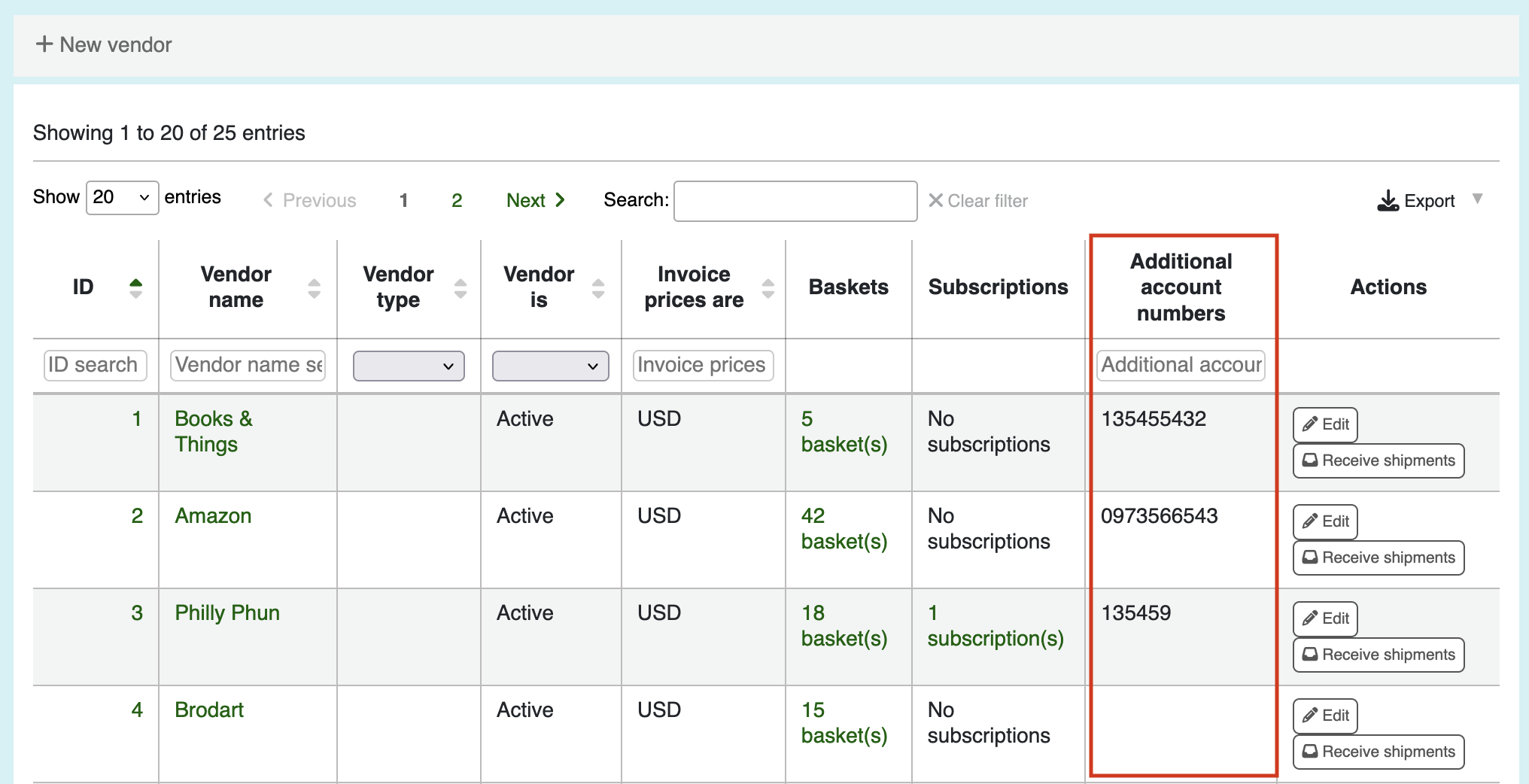
Staff can search/filter within results for the content of that field using the general table search field or the column-specific search field:
'Searchable' does not mean that staff can search for contents of the field in the main Vendor search. Vendor search still only searches for vendor names and aliases.
Staff must have the Manage additional fields (manage_additional_fields) permission under the parameters umbrella and the top-line Acquisition management (acquisition) permission to configure additional fields for vendor records (see Bug 43178 - Vendor additional fields shouldn't need umbrella Acquisition management (acquisition) permission).
Bug 38207 - Add vendor payment methods
This enhancement gives libraries the ability to record payment methods in vendor records. This can be useful if, for instance, your library wants to note vendors who bill monthly for account balances, require up-front credit card payments, or use ACH.
The enhancement introduces a new 'Payment method' dropdown in the 'Ordering information' section of vendor records:
This options available to select draw from authorized values configured in the new VENDOR_PAYMENT_METHOD authorized value category, so they are completely customizable for your library.
The field is not required to be filled in when vendor accounts are created or edited, and staff can choose multiple payment types for each vendor if applicable.
Cataloging
Bug 40031* - Creation of a new MARC modification template should redirect to have the template ID in the URL
When staff create and edit MARC modification templates, the template ID will now be included in the URL of the creation/editing screen. The template ID will appear as follows (highlighted below):
https://staff-[LIBRARY].bywatersolutions.com/cgi-bin/koha/tools/marc_modification_templates.pl?template_id=4&op=select_template
Previously, templates didn't display dedicated URLs, which meant that staff could only refer to them by name. This could be problematic for libraries who had many templates or multiple templates with similar names. With this enhancement, when staff are discussing a MARC modification template (either with colleagues or for troubleshooting with ByWater Solutions), they can send the URL of the specific template instead of referring to it by name.
Bug 16994 - Import and export MARC modification templates
MARC modification templates can now be exported and imported. This is an exciting enhancement that will make it easier for libraries to share helpful templates with colleagues in the wider Koha community! It is also useful for keeping local backups of your library's MARC modification templates.
The new options are available above your library's table of templates in Cataloging > MARC modification templates:
Under 'Export', staff can select a specific template by name, or choose 'Export all templates':
The export will create a JSON file named 'marc_modification_templates'. If 'Export all templates' is selected, all of your library's templates will export in the single file.
To import, select the 'Import' button, browse for the JSON file, verify your overwrite option, and click 'Import' on the modal:
The success screen will look like this for an imported file:
(The 'Overwrote [#] template(s) that already exist' message will only show if a file has been overwritten.)
If a file is skipped due to matching, the confirmation screen will look like this:
Note that the 'Skip existing templates (do not overwrite)' is checked by default, so you will need to uncheck the box if you do want to overwrite templates with the same name.
To determine whether a template already exists, Koha looks in the JSON file for the template name, not the file name. While it is not typically necessary to open the JSON file prior to importing, we recommend doing so in order to verify the template name if you are unsure about whether it could (or should) overwrite an existing template. In addition to the template name(s), the file contains the template ID number(s) and actions:
Keep in mind that if you import a MARC modification template from another library, it may need to be edited before you can use it. For instance, if the template contains item type, collection code, or shelving location codes from the source library, you will need to edit it once it's imported to substitute your codes.
Bug 40841 - Limit z39.50 targets to specific libraries
This enhancement adds a 'Library limitation' selection box to z39.50 server setup. Targets are not limited by default, but libraries can now limit them so that they may only be used when logged in at a specific library. Administrators can also limit a server to multiple libraries by selecting them with command+click.
If a staff member is logged in at a library that does not have access to a given target, the target will not show up as an option when searching z39.50 from cataloging, cataloging search results, the advanced catalog editor, catalog search results, or the Edit menu > Replace bib using z39.50 in a bib's detail view.
Bug 17387 - Add an undelete feature for items/biblios
Prior to 26.05, if a bib or item was accidentally deleted, libraries had to reach out to ByWater Solutions support to reinstate the bib/item. This meant that the reinstatement wasn't immediate, which could slow down workflows. With this enhancement, bibs and items that are accidentally deleted can be recovered directly from the staff interface.
To restore an accidentally-deleted bib or item, go to Cataloging > Restore deleted records (under Batch editing column):
There are separate 'Deleted bibliographic records' and 'Deleted items' tables. Both tables are sorted by default on the 'Deleted on' (date) column, but staff can click on other column headers to sort by other criteria. These tables don't have table configurations available to hide or show other columns. There is a 'Search' box to help sort through extensive tables, but note that it only searches visible table data. This means, for example, that titles aren't searchable in the 'Deleted items' table since there is no 'Title' column.
Restoring deleted bibs
The 'Deleted bibliographic records' table has columns for 'Biblio ID' (biblionumber), 'Title', 'Author', 'Deleted on', and 'Actions'. To restore a bib, click the 'Restore' button in the 'Actions' column:
This will bring up a modal with the option to restore deleted items (if any). Select any items that should also be restored, then click 'Restore' on the modal:
If a bib has no deleted items, the modal will show as:
The confirmation screen will have the biblionumber and, if applicable, the number of items successfully restored. This message automatically disappears after about 10 seconds:
Restoring deleted items
The 'Deleted items' table is below the 'Deleted bibliographic records' table. It has columns for 'Item ID' (item number), 'Biblio ID' (biblionumber), 'Barcode', 'Call number', 'Home library', 'Deleted on', and 'Actions'. Since this table doesn't have a 'Title' column, staff will need to know the barcode or item number for the item they need to restore.
For item restoration where the bib still exists, clicking 'Restore' will display a confirmation modal with the item number followed by the barcode in parentheses. Click 'Ok' to continue:
A
confirmation with the item number appears briefly above the 'Deleted
bibliographic records' table. It clears automatically in approximately
10 seconds:
If staff
try to restore an item where the bib has also been deleted, they will
see a modal prompting them to first restore the bib:
Upon
clicking 'Restore bibliographic record', they will see the same modal as
when restoring a bib, but the item they initially clicked to restore
will be pre-selected:
Item data and activity in the item record including including checkouts, renewals, local
use, and original accession date all restore with the item. However, data in related tables (such as hold history) is not restored by this tool when items or bibs are restored.
Permissions
Staff who should have access to this feature will need the new permission Restore deleted bibliographic records and items (records_restore) under the editcatalogue umbrella. They do not need Edit catalog (Modify bibliographic/holdings data) (edit_catalogue) or Edit items (not including items restricted by library group) (edit_items).
Item restoration is compatible with item editing limitations set in Administration > Library groups. If a staff member's home library is in a library group with the 'Limit item editing to items owned inside of this group' setting and they only have the Restore deleted bibliographic records and items (records_restore) permission, they will only be able to restore items owned by the libraries in that group. In the 'Deleted items' table, the 'Restore' button for items they can't restore will be greyed out:
For bib restoration, items they can't restore will be noted in the restoration modal:
Note that they can still restore the bib above because of the Restore deleted bibliographic records and items (records_restore) permission.
Staff who belong to a library group with limited item editing privileges who should be able to restore any item regardless of its home library also need the Edit any item including items that would otherwise be restricted (edit_any_item) permission.
Logs
In logs, restored bibs and items will show with the action 'Restore':
Note that logs include a new 'Restore' option to account for this feature:
Error messages for failed restoration contain limited details, so for any failed restorations, please reach out to ByWater Solutions so that we can troubleshoot. Two bugs have been filed regarding the error messages provided when items fail to restore:
- Bug 43398 - Standardize error messages when items fail to restore/undelete
- Bug 43399 - Provide error details when items fail to restore/undelete
Bug 40633* - Add keyboard shortcut to advanced cataloging editor for fixed length field plugins
Libraries who use the advanced cataloging editor can now take advantage of keyboard shortcuts to access Koha's value builders for the 006, 007, and 008.
The default shortcut for 'Open fixed-length field helper (Leader, 006, 007, 008)' is Shift+Control+H, but libraries can define a different one in Administration > Advanced editor shortcuts.
The shortcut works with the cursor in any of the red starting positions below (008 is used for this example, but the same applies for 006 and 007:
Bug 32773 - Have the ability to have more than 1 Fast Add framework
This enhancement allows libraries to create multiple Fast Add frameworks. This is especially useful for consortia where each library would like different fields to show, have different fields required, or want fields pre-filled with different details.
In Administration > MARC bibliographic frameworks, bibliographic frameworks have a new 'Use as a Fast add framework' checkbox to indicate that a framework should be used for Fast Add:
Frameworks designated as Fast Add are flagged in the frameworks table with a 'Fast add' badge:
The first time administrators select 'MARC structure' under the Actions button, they will be prompted to pull in an existing framework as the basis for the new one. We recommend choosing the built-in Fast Add framework and modifying from there since it already has limited fields:
Once you have edited the framework as needed, staff can begin to use it for Fast cataloging.
Be aware that when creating a Fast Add record during checkout or from the '+Fast cataloging' button in Cataloging or Circulation, Koha will default to the built-in Fast Add Framework (code FA). Staff can can select other frameworks for a given bib from the new 'Change Fast add framework' group under the Settings menu:
The order of frameworks in this menu is by display name, not code. (In the example above, the code for 'Central Region Fast Add' is FAC.) Keep this in mind when naming (or renaming) custom Fast Add frameworks.
Note that there is a bug with using Fast cataloging from Circulation: Bug 43190 - Staff with only fast_cataloging permission no longer directed to 'Add item' screen when creating a Fast Add record from checkout.
Bug 39516 - Record and display record matching rule composite scores
In the past, match details for imported files could be opaque when libraries had matching rules composed of multiple facets. When an incoming title matched an existing bib, staff could see the match 'score', but they had no way to know what elements added up to meet the match threshold without inspecting each individual bib and matching field. For instance, if the match threshold was 1000 and ISBN, title, and author were each worth 500, libraries had to review MARC details to know whether a score of 1000 was a combination of ISBN and title, title and author, or author and ISBN. This information is especially important when an incoming bib matches with multiple existing titles - knowing exactly what the incoming bib matches on can help catalogers evaluate which existing bib is the best match. That information is now readily available with composite scores for staged records.
In Cataloging > Manage staged MARC records, there is a new 'Score breakdown' column available to display the details of a matched imported bib:
When multiple matches are found, catalogers can review the score details for both (and change the selected record in 'Match details', if needed):
Note that the new 'Score breakdown' column is hidden by default at upgrade, but it can be set to display in Administration > Table settings > Tools group > manage-marc-import (table name).
Circulation
Circulation administration
Bug 39802 - Add CircControl equivalent system preference for lost item fees and actions and Bug 36506 - Processing fee should be configurable by library and Bug 35612 - Record branch context in accountlines.branchcode for OVERDUE, LOST, and PROCESSING fees
These three bugs work together to provide added flexibility and improved tracking for overdue, lost, and processing fees charged to patrons' accounts.
Bug 36506
This enhancement introduces the flexibility for each branch/library in a system to set their own processing fees per item type. Previously, if libraries wanted to charge processing fees for lost items in addition to the cost of the item itself, the amount was set per item type in Administration > Item types, which meant it was global for all libraries in the system. For instance, if Main wanted to charge $5 for lost Book items but East wanted to charge $4 (or nothing at all), there was no way to set separate fees by library - one library would always need a workaround if no agreement could be reached that worked for all locations in a system.
Now, each
library can now set their own processing fees per item type, as
well as an 'All' item-type fee for item types that aren't otherwise
specified. Processing fees are set in a new section in Administration > Circulation and fine rules called 'Default lost item fee policy' (on the 'Standard rules for all libraries' rule page)/'Lost item fee policy for [library name]':
The branch whose rules are used is determined by LostChargesControl (see 39802 below).
As with other circulation policies, Koha will use the most specific rule it can find. For example, consider a lost Book item where LostChargesControl indicates that the Main branch's policies should be used. Koha will look for a processing fee in this order:
- A Book rule in the 'Lost item fee policy for Main Library' section of Main's rule page
- An All rule in the 'Lost item fee policy for Main Library' section of Main's rule page
- A Book rule on the 'Default lost item fee policy' section on the 'Standard rules for all libraries' page
- An All rule on the 'Default lost item fee policy' section on the 'Standard rules for all libraries' page
If none of those exist, the patron won't be charged a processing fee.

At upgrade, any per-item type processing fees that were formerly in Administration > Item types will be set in the 'Default lost item fee policy' on the 'Standard rules for all libraries' rule page. Item types that had no processing fee will be set to 0.00.
Libraries should review amounts in the 'Default lost item fee policy' on the 'Standard rules for all libraries' rule page.

IMPORTANT: Systems who would like library-specific processing fees will need to set them up in each 'Lost item fee policy for [library name]' section for every library's rule page.
Keep in mind that lost refund behavior is still controlled by RefundLostOnReturnControl: "If a lost item is returned, apply the refunding rules defined for the [check-in library/item's home library/item's holding library]."
Bug 39802
This enhancement introduces the system preference LostChargesControl: "Use the lost charge rules of [the library the item is from/the library
the patron is from/the library you are logged in at]." When set to [the
library the item is from], Koha will consult HomeOrHoldingBranch to determine whether the item's home library or holding library should be used.
This
system preference will determine which library's processing fees should
be used (see 36506 above) and which branch should be recorded for
PROCESSING and LOST charges in accountlines.branchcode (see 35612 below). For
libraries who have different rules by branch in the longoverdue.pl cron, it will determine which branch's rules are used.
For example: Main has Hotspots set to go 'Long overdue (lost)' at 3 days overdue, while East uses 5 days. An East patron has an overdue Hotspot belonging to Main. If LostChargesControl is set to [the library the patron is from], the Hotspot will be set to 'Long overdue (lost)' when it is beyond 5 days overdue, and the patron will be charged the appropriate processing fee set in the 'Lost item fee policy for East Library'. If East has no Hotspot or All processing fee, Koha will look for one in the 'Default lost item fee policy' from the 'Standard rules for all libraries'.
Bug 35612
Koha
will now record the branch whose circulation rules were used to charge
overdue, lost, and processing fees in accounlines.branchcode based on
relevant system preferences for each type of charge.
Overdue fees are tracked with debit_type_code OVERDUE. The library whose overdue fees are used has and continues to be determined by CircControl (plus, when CircControl is set to [the library the item is from], HomeOrHoldingBranch),
but the branch whose fees were used was previously not recorded in
accountlines.branchcode. Now, the branch code will be recorded so that
managers can see which set of rules Koha consulted to charge overdue
fines.
Lost
charges use debit_type_code LOST, and processing fees use PROCESSING. The branch used for both types of charges is now
controlled by LostChargesControl (and, when LostChargesControl is set to [the library the item is from], HomeOrHoldingBranch) with the introduction of Bug 39802 as discussed above. The branch whose rules are consulted to charge lost and processing fees
will now be recorded in accountlines.branchcode for improved tracking
and troubleshooting.
For example, OVERDUE, PROCESSING, and LOST charges could show as:
- OVERDUE:
M means that Main library's rules were used to charge the overdue fee.
In this instance, the item had a home library of North and was checked
out from Main by an East patron. CircControl was set to [the library the item is from] and HomeOrHoldingBranch was set to [the item's holding library], so M was recorded in accountlines.branchcode.
- PROCESSING and LOST: E means that East library's rules were used to determine the processing fee and record the branch for both fee types. Again, the item had a home library of North and was checked out from Main by an East patron. LostChargesControl was set to [the library the patron is from], so E was recorded in accountlines.branchcode.
In combination
Consider
this scenario:
- An item has a home library of East, and was checked out from Main by a West patron.
- It was marked Lost by a staff member logged in at North.
- East's
circulation rules are set to charge $4 for lost Book items, Main's
rules charge $5, and West's rules charge $1.50. North does not have a processing fee set for Book
items, nor does it have an All item type processing charge set.
- The processing fee for Book items in 'Standard rules for all libraries' is $2.
Lost and processing fees would be charged and logged as follows for each combination of system preference settings:
- LostChargesControl set to [the library the item is from], and HomeOrHoldingBranch set to [the item's holding library]: Processing charge of $5, since the item had a holding library of Main. The PROCESSING and LOST charges in accountlines.branchcode would be attributed to M.
- LostChargesControl set to [the library the item is from], and HomeOrHoldingBranch set to [the item's home library]: Processing charge of $4, since the item had a home library of East. The PROCESSING and LOST charges in accountlines.branchcode would be attributed to E.
- LostChargesControl set to [the library the patron is from]: Processing charge of $1.50, since the patron is registered at West. The PROCESSING and LOST charges in accountlines.branchcode would be attributed to W.
- LostChargesControl set to [the library you are logged in at]: Processing charge of $2 - since North doesn't have a Book or All item type processing charge, Koha uses the Book charge from 'Standard rules for all libraries'. The PROCESSING and LOST charges in accountlines.branchcode would be attributed to N.
Note that the action that triggers the lost and processing charge will not always match the branch in accountlines.branchcode. In all four examples above, the action that triggered the charges (that is, marking the item lost) was performed at North. However, only the last example would record N in accountlines.branchcode.
Further, keep in mind that when Koha uses processing fees from 'Standard rules for all libraries' because no branch-specific rule exists, the library indicated by LostChargesControl (in concert with HomeOrHoldingBranch, if applicable) will still be reflected in accountlines.branchcode. The branch Koha records is determined by the rules it is set to use according to LostChargesControl/HomeOrHoldingBranch, even if no rule is found and it falls back to the 'Standard rules'.
Bug 28530 - Allow configuration of floating limits by item type
This enhancement will help libraries balance collections across branches by allowing managers to set floating limits by item type. When an item is checked in at a branch that is over its limit, Koha will now trigger a transfer to the branch that is the furthest below its capacity.
The feature's on/off switch is a new system preference called UseLibraryFloatLimits: "[Use/Don't use] library float limits to determine if an item should be transferred to another library." It will be set to [Don't use] at upgrade.
Once the feature is set to [Use], libraries will need to configure the new Library float limits table in Administration (under Patrons and circulation header):
For any item type with a value in the matrix, Koha calculates a ratio of items with that branch in 952$b (only counting items that aren't checked out) to the limit set in the matrix.
Note that Koha does not subtract lost, damaged, not for loan, and withdrawn items from a branch's total of currently held items (per 952$b) to calculate its ratio - that is, items with those statuses count toward calculating a library’s ratio as long as they are not checked out (see Bug 43248 - Lost, not for loan, withdrawn, and damaged statuses not considered in library float limits ratio calculations).
For example:
- Below ratio: North's limit for New Book items is 10, and 7 New Book items are currently at that location. Koha calculates North's New Book ratio as .7 (7:10). New Book items checked in at North will stay there as long as its ratio remains below 1 (unless they transfer elsewhere for a hold).
- Above ratio: Main's New Book limit is 10, and there are 12 New Book items there. This makes Main's ratio 1.2 (12:10). New Book items checked in at Main will transfer to the library with the lowest ratio, or randomly if there is a tie for lowest.
When an item is checked in at a library that is over its limit, Koha will look for the library with the lowest ratio and trigger a transfer there:
The reason for transfer will show in logs as 'LibraryFloatLimit':
At this time, the reason for transfer does not show in the checked-in items table (see Bug 43247 - Transfer reason doesn't show in Checked-in items table for float limit transfers).
Bug 41267*- It should be possible to prevent some itemtypes from filling other biblio level holds
This bug adds a column to the 'Holds and bookings policies by item type for [library name]'/'Default holds and bookings policies by item type' (for 'Standard rules for all libraries') table in Administration > Circulation and fine rules called 'Fill other record level holds on record at checkout':
This setting is relevant for bibs with multiple items where the items are of two (or more) item types. It determines whether Koha should consider a hold complete if a patron checks out an item of a given item type from the bib prior to the hold being filled. Setting an item type to Yes will make it behave the same way it did prior to the introduction of this setting.
Prior to this bug, if a patron had a hold on a bib and checked out an item from that bib before the hold was filled, Koha marked the hold as F (finished) - that is, the checkout satisfied the hold, so the hold no longer showed on libraries' Hold queue/Holds to pull. This new column allows libraries to choose whether specific item types will satisfy holds in this manner.
For example, a patron has a bib-level hold on Librarianship Beyond the Textbook, which has a mix of Book and New Book items. Before their hold is filled (so, the hold status is NULL), they pull an item off the shelf and check it out:
- If they selected a Book item, Koha will consider the hold F (finished) - that is, the checkout satisfies the hold, so the hold moves to the old_reserves table. Items from the bib will no longer show on the Holds queue/Holds to pull, nor will they trigger to fill the hold when checked in.
- If they select a New Book item, the checkout does not satisfy the hold. It remains active on their account and will populate on the library's Holds queue/Holds to pull or trigger when an item is checked in (whichever happens first).
If there is no rule set for an item type in 'Holds and bookings policies by item type for [library name]'/'Default holds and bookings policies by item type', Koha will treat that item type as if it were set to Yes, meaning that checking out an item of that type will mark the hold F (finished). This matches Koha's behavior prior to this new setting.
There are two important caveats to keep in mind:
Setting an item type to No does not prevent items of that type from triggering to fill holds when checked in if they are on a bib with a mix of holdable and not holdable item types.
At upgrade, any item types that have rules set in 'Holds and bookings policies by item type for [library name]'/'Default holds and bookings policies by item type' will appear to have 'Fill other record level holds on record at checkout' set to No. However, No is not actually saved in the database (see Bug 43072 - fill_other_biblio_holds_policy values display incorrectly in circ rules page). Thus, all existing item type rules in 'Holds and bookings policies by item type for [library name]'/'Default holds and bookings policies by item type' should either be 1) updated to Yes or 2) recreated with No selected as appropriate, and then saved over the existing rule.
For example, if Periodical items should not satisfy holds in this manner, the rule would need to be re-created with No selected and then saved to replace the rule as it displays from the upgrade:
Bug 41360* - Transport cost matrix assumes all transfers are disabled upon first use
In the past, administrators had to click into each individual cell to add values to the Transport cost matrix on initial use. Now, there are 'Enable all cells', 'Disable empty cells', and 'Populate empty cells' options to assist with filling in the Transport cost matrix:
Administrators can click 'Enable all cells' to open everything for editing at once, instead of having to click into each individual cell:
If empty cells should be disabled for transfers, 'Disable empty cells' will check the 'Disable' boxes for all empty cells rather than staff having to click them each individually:
'Populate empty cells' will fill all empty cells with a value chosen from the drop-down options (which are not configurable):
Note that empty disabled cells will populate with the value chosen, but they will save properly as red (no transfer allowed):
General circulation
Bug 23415 - Notify patron fines when renewing
Prior to 26.05, libraries could not prevent staff from renewing items via the staff interface based on the amount a patron owed. OPACFineNoRenewalsBlockAutoRenew could prevent automatic renewals, and OPACFineNoRenewals would block patron-initiated renewals from the OPAC, but there was no analogous option to prevent renewals from the staff interface. With this enhancement, libraries can block renewals based on the amount patrons owe, regardless of where the attempted renewal happens.
OPACFineNoRenewals is now FineNoRenewals: "Only allow patrons or staff to renew items if patron has less than [amount] USD in fines (leave blank to disable)." At upgrade, the amount that was previously set for OPACFineNoRenewals will be retained in FineNoRenewals.
Libraries that want to prevent renewals based on the amount a patron owes should also consider the new system preference AllowFineOverrideRenewing: "[Allow/Don't allow] staff to manually override and renew items for patrons who have more in fines than set in the FineNoRenewals system preference." This will be set to [Allow] at upgrade to match pre-upgrade behavior.
If this is set to [Don't allow] and a patron owes more than the amount in FineNoRenewals, no staff member will be able to override fines in order to process a renewal.When AllowFineOverrideRenewing is set to [Allow], staff must also have the Override blocked renewals (override_renewals) permission to renew an item by override from a patron's account if they owe more than the amount in FineNoRenewals (see Bug 43227 below for renewals from Circulation). This means that libraries can now allow a limited number of staff members to override renewals that would otherwise be blocked due to fines.
If AllowFineOverrideRenewing is set to [Don't allow] and a patron owes more than the amount in FineNoRenewals, or if AllowFineOverrideRenewing is set to [Allow] but the staff member doesn't have the Override blocked renewals (override_renewals) permission, there will be a new blocking message in the Renew column of the patron's Checkouts table:
There is also a new note under the checkout table with the patron's amount owed and the limit from FineNoRenewals.
'Override renewal restrictions' does not apply to renewal restrictions based on fines, so even if that box is checked, the blocking message remains:
When AllowFineOverrideRenewing is set to [Allow] and staff have the Override blocked renewals (override_renewals) permission, there will be a new 'Override fine restrictions' checkbox. If this is selected, there will be a checkbox in the Renew column to allow the renewal by override:
If staff select the Renew checkbox and click the 'Renew selected items' button (or 'Renew all', as applicable), there will be a confirmation modal:
(The formatting issues in the confirmation modal are noted in Bug 43225 - Renewal confirmation message formatting is missing punctuation and space.)
When renewing from Circulation > Renewals or the 'Renew' function from the multi-function green bar instead of from the patron's account, staff will see this message if AllowFineOverrideRenewing is set to [Allow]:
At this time, if AllowFineOverrideRenewing is set to [Allow] and staff members don't have the Override blocked renewals (override_renewals) permission, they will be able to renew from Circulation > Renewals or from the 'Renew' option in the green multi-function toolbar (see Bug 43227 - Ability to renew should be consistent for staff without override_renewals permission).If AllowFineOverrideRenewing is set to [Don't allow], they will see:
This enhancement also adds the system preference FineNoRenewalsBlockSelfCheckRenew: "If a patron owes more than the value of FineNoRenewals, [allow/don't allow] renewals via the self-checkout system." This will be set to [allow] at upgrade.
Two additional existing system preferences have been updated to reflect the change in function:
- OPACFineNoRenewalsIncludeCredits is now FineNoRenewalsIncludeCredits: "[Include/Don't include] outstanding/unapplied credits when applying the FineNoRenewals rule to patrons."
- OPACFineNoRenewalsBlockAutoRenew is FineNoRenewalsBlockAutoRenew: "If a patron owes more than the value of FineNoRenewals, [allow/block] their auto-renewals."
The existing settings for each of these system preferences will be retained at upgrade.
Bug 23909*- SCO allows to check out items with Waiting state if AllowItemsOnHoldCheckoutSCO
This
enhancement updates the existing system preferences
AllowItemsOnHoldCheckoutSCO and AllowItemsOnHoldCheckoutSIP with more
granular options for allowing/preventing checkouts of items on hold, and
adds a new system preference for overriding holds to check out from the
staff interface.
In the past, setting AllowItemsOnHoldCheckoutSCO and AllowItemsOnHoldCheckoutSIP both to [Allow] worked differently, which was confusing for staff and patrons.
When AllowItemsOnHoldCheckoutSCO was set to [Allow], patrons using self-check could check out items that were pending (that is, not yet triggered) or waiting (on the hold shelf, and the patron had been optionally notified). However, when AllowItemsOnHoldCheckoutSIP was set to [Allow], patrons checking out from a station using SIP could check out items that were pending for other patrons' holds, but not waiting.
Now AllowItemsOnHoldCheckoutSCO is "[Don't allow/Allow pending holds only/Allow pending and waiting
holds] checkouts of items reserved to someone else in the SCO module.
When set to 'Allow pending holds only' items with a pending hold (no
pickup notification sent yet) can be checked out, but items already
waiting on the hold shelf (or in transit/processing for pickup) are
blocked. When set to 'Allow pending and waiting holds' all on-hold items
can be checked out regardless of hold state." (Previously,
it was "[Allow/Don't allow] checkouts of items reserved to someone else
in the SCO module. If allowed do not generate RESERVE_WAITING and
RESERVED warning. This allows self-checkouts for those items.")
AllowItemsOnHoldCheckoutSIP is now "[Don't allow/Allow pending holds only/Allow pending and waiting
holds] checkouts of items reserved to someone else via SIP checkout
messages. When set to 'Allow pending holds only' items with a pending
hold (no pickup notification sent yet) can be checked out, but items
already waiting on the hold shelf (or in transit/processing for pickup)
are blocked. When set to 'Allow pending and waiting holds' all on-hold
items can be checked out regardless of hold state. If using the holds
queue, items with pending holds will be marked as 'unavailable' if this
is set to 'Don't allow." (Prior to this upgrade, it was "[Allow/Don't allow] checkouts of items reserved to someone else via
SIP checkout messages. If allowed do not generate RESERVED warning. This
allows self-checkouts for those items. If using the holds queue items
with pending holds will be marked as 'unavailable' if this set to 'Don't
allow'.")
The settings at upgrade are intended to preserve pre-upgrade behavior. Thus, libraries who had AllowItemsOnHoldCheckoutSIP set to [Allow] will be set to [Allow pending holds only]. Libraries with AllowItemsOnHoldCheckoutSCO set to [Allow] will be set to [Allow pending and waiting holds].
Libraries who had one or both set to [Don't allow] will have that
preference (or both, if applicable) set to [Don't allow].
If a library wants to allow checkout of items waiting on the hold shelf for other patrons via SIP, they will need to update AllowItemsOnHoldCheckoutSIP to [Allow pending and waiting holds].
The enhancement also adds the new system preference AllowHoldCheckoutOverride:
"[Allow/Don't allow] staff to override and check out items that are on
hold for another patron. When not allowed, checkouts of items with a
pending or waiting hold are blocked at the staff interface with no
override option."
In the past, staff with the force_checkout permission could check items out to patrons whether they were in a pending or waiting hold status. Staff will still need force_checkout to override holds for checkout with this system preference, so to preserve pre-upgrade behavior, AllowHoldCheckoutOverride is set to [Allow] at upgrade.
Note that force_checkout combines with system preferences to allow override for other circumstances (including AllowTooManyOverride for number of items checked out, AllowNotForLoanOverride for checking out not for loan items, AllowFineOverride for checkouts where the patron owes more than the limit in noissuescharge, and AgeRestrictionOverride to
check out age restricted items), so this new system preference aligns
with that structure and gives libraries the flexibility to allow those
other types of overrides without allowing hold overrides.
AllowHoldCheckoutOverride will work in combination with force_checkout as shown below.
Checking out a pending hold with AllowHoldCheckoutOverride set to [Allow], and a staff member does not have force_checkout:
Checking out a waiting hold with AllowHoldCheckoutOverride set to [Allow], and a staff member does not have force_checkout:
Checking out a pending hold with AllowHoldCheckoutOverride set to [Allow], and a staff member does have force_checkout:
Checking out a waiting hold with AllowHoldCheckoutOverride set to [Allow], and a staff member does have force_checkout:
Checking out a pending hold with AllowHoldCheckoutOverride set to [Don't allow], regardless of force_checkout setting:
Checking out a waiting hold with AllowHoldCheckoutOverride set to [Don't allow], regardless of force_checkout setting:
Note that when AllowHoldCheckoutOverride is set to [Don't allow], no staff member - including those with superlibrarian permissions - will be able to override pending or waiting holds in order to check items out.
Based on this bug, administrators have more flexibility to define what hold states can be overridden for checkouts via SIP and SCO than they do for checkouts via the staff interface. Bug 43400 - Add granularity to AllowHoldCheckoutOverride has been filed to allow that same flexibility for staff interface overrides.
Holds
Bug 41788* - Make running the holds queue on click optional
This introduced the system preference UseHoldsQueueFilterOptions: "[Enable/Disable] If enabled, the holds queue will present the user with filter options before running. If disabled, the holds queue will show the full queue for the current branch, and additional filters can be applied afterward."
It was set to [Enable] at upgrade (backported, so it is already on ByWater Solutions partners' sites), which means that the holds queue won't run until staff click 'Submit'. This allows them to select one or more parameters prior to running the queue, or it can be run with no additional parameters selected. (Parameters can still be selected after running the queue.)
If set to [Disable], the holds queue will run immediately for the logged-in branch when staff select 'Holds queue' from Circulation without the opportunity to select parameters. Parameters can still be applied after running the queue.
ByWater Solutions recommends that large partners or any libraries who feel that the holds queue sometimes runs slowly keep UseHoldsQueueFilterOptions set to [Enable]. Libraries who do not have concerns with the queue running slowly can also keep it set to [Enable] if they prefer to have staff select parameters prior to running, or may set it to [Disable] if they prefer to not have the extra click for staff.
Bug 41539*- Include item barcode in waiting hold message on patron record
The waiting item's barcode now shows in the 'Holds waiting here' message on patrons' Details and Checkout screens:
Bug 41880* - Logs for moved holds don't indicate original bib number/item number
Logs for holds that have been moved from one bib to another or from one item to another now show the original bib number (for bib-level holds) or item and bib numbers (for item-level holds) in logs.
For moved bib-level holds:
For moved item-level holds:
This will allow for improved tracking and troubleshooting when there are questions or problems with holds that have been moved.
Bug 41883* - Modifications using batch hold modification tool aren't logged
To assist with troubleshooting holds issues, changes made to holds via the Batch hold modification tool are now logged (and, like other logs, visible in the Diff column):
Bug 41882* - Batch hold modification tool updates pickup locations to disallowed libraries
When the Batch hold modification tool was introduced in 25.11, it allowed staff to update hold pickup locations to branches that should not have been permitted per libraries' 'Holds and bookings policies by item type' settings. This is now prevented in the Batch hold modification tool.
Holds that did not update to the new pickup location will be noted in a separate table with the reason for the failed update:
As shown in the example above, note that holds in the batch that were allowed to update to the new location will still be updated properly.
OPAC
Bug 40659 - Allow "My virtual card" format and content to be customizable
Libraries can now customize the content in the 'Library card' tab of the OPAC. Content is customized using a new template called VIRTUALCARD in Tools > Notices and slips.
If no customization has been added, the default content will show as:
To customize, use 'hungry alligators' or Template Toolkit on the Email tab of the VIRTUALCARD notice. The template accepts two special variables:
- Patron image: <<my_image>> (hungry alligators)/[% my_image %] (Template Toolkit)
- Barcode in the format set in OPACVirtualCardBarcode: <<my_barcode>> (hungry alligators)/[% my_barcode %] (Template Toolkit)
Here is an example using hungry alligators:
Code:
Patron: <<borrowers.preferred_name>> <<borrowers.surname>><br>
Home library: <<branches.branchname>><br>
Member since: <<borrowers.dateenrolled>><br>
Expiration date: <<borrowers.dateexpiry>><br>
<<my_barcode>>
Card number: <<borrowers.cardnumber>>
Home library: <<branches.branchname>><br>
Member since: <<borrowers.dateenrolled>><br>
Expiration date: <<borrowers.dateexpiry>><br>
<<my_barcode>>
Card number: <<borrowers.cardnumber>>
Here is a Template Toolkit example:
Code:
[% my_barcode %]
Card number: [% borrower.cardnumber %]<br>
Patron: [% borrower.preferred_name %] [% borrower.surname %]<br>
Home library: [% branch.branchname %]<br>
Member since: [% borrower.dateenrolled %]<br>
Expiration date: [% borrower.dateexpiry %]
Card number: [% borrower.cardnumber %]<br>
Patron: [% borrower.preferred_name %] [% borrower.surname %]<br>
Home library: [% branch.branchname %]<br>
Member since: [% borrower.dateenrolled %]<br>
Expiration date: [% borrower.dateexpiry %]
Libraries can have individual notice templates if needed, but the notice code must be VIRTUALCARD for all of them. Administrators should make sure the name of each notice template has the library name or other information to distinguish it. Koha will use the customization for the patron's home library, or the 'All libraries' version if there is no customization for a specific library.
Koha will not show patron passwords on the 'Library card' tab. If code is added to the notice template to show passwords, Koha will display a hashed string of code, not the patron's actual password.
If the VIRTUALCARD template is deleted or the content is saved blank, the image on the 'Library card' will revert to the default. To hide the 'Library card' tab entirely, set the system preference OPACVirtualCard to "[Don't allow] patrons to access the 'Library card' tab on their account page on the OPAC." (The 'Library card' feature itself is not new.)
Bug 39698 - Add option to expand responsive datatable rows by default
This enhancement allows libraries to define whether OPAC tables that don't fit on a screen (either because the screen is zoomed in, or is being viewed on a mobile device) should be expanded or collapsed by default. It was recommended by an accessibility audit, so each library should consider their patrons' accessibility needs when evaluating it.
Whether excess columns are collapsed or expanded by default is set by the new system preference OPACTableColExpandedByDefault: "[Don't expand/Expand] tables on the OPAC by default, when zoomed in or viewed on a mobile screen." To align with pre-upgrade behavior, it will be set to [Don't expand] at upgrade.
This bug allows libraries to set a default for whether columns that don't fit on a screen should be expanded or collapsed by default. The collapsing/expanding behavior itself, including the examples below, is not new.
When a table has more columns than fit on a screen, the collapsed columns will show as a column with a green plus sign:
If OPACTableColExpandedByDefault is left at its default setting of [Don't expand], this will be what patrons see when all columns don't fit on a screen.
Note that some, but not all, collapsed columns will have an 'Expand' header (see Bug 43237 - 'Expand' column header doesn't appear consistently for collapsed responsive tables in the OPAC).
When expanded, the additional columns will show beneath each row. This will be the default view if
OPACTableColExpandedByDefault is set to [Expand]:
OPACTableColExpandedByDefault is set to [Expand]:
If columns are expanded by default per OPACTableColExpandedByDefault, or if a patron has expanded a default-collapsed column, they can click on the minus sign to collapse it.
Responsive OPAC tables include the holdings table and course reserves for general OPAC browsing, and the checkouts table, current holds table, checkout history, charges, search history, and clubs tables in patron accounts. At this time, the hold history table doesn't have the collapse/expand functionality (see Bug 43236 - OPAC hold history table isn't responsive).
Patrons
Patron searching and accounts
To prevent system slowdowns, staff can no longer perform blank, facet-less patron searches from the green quick search toolbar:
Staff must enter at least a partial search term, or select a facet from the slider menu. If a facet is selected, staff can search with or without a search term.
Search behavior from full patron search is not affected by this bug.
Bug 30303 - Add ability to select which values to retain when merging patrons
When staff merge two patron accounts, they can now select which values to retain from each for a limited list of fields. This will be valuable for situations where parts of both records are correct. For instance, a patron may have an old account whose username and registration date the library wants to retain, and a second (newer) account with an updated address. In the past, staff had to copy/paste or re-type information from the account that was not kept, but thanks to this enhancement, they can simply check a box to bring those details into the retained account.
The merge screen has a new 'Copy values from record to be deleted' option. Check the box to use this feature:
Checking that box displays the fields that can be retained from the record that will otherwise be deleted. Only fields that differ between the two records will show on this screen:
'Destination record' is the record whose details will be kept unless otherwise noted. 'Source record' is the account whose details will be deleted in favor of the 'Destination record' details. Check the 'Copy value' box for any account information from the 'Source record' that should be retained instead of the corresponding information in the 'Destination record' for a given field:
In this example, the older account is set as the 'Destination record' because more of its details are correct. Since the patron has lost her old card, the card number will be retained from the newer 'Source record' account, along with her up-to-date address and phone number.
Be aware that not all patron fields can be retained from the 'Source record' in this manner. The fields that can be retained are:
- Surname
- First name
- Preferred name
- Other name
- Library
- Card number
- Address line 1
- Address line 2
- City
- State
- ZIP
- Registration date
- Renewal date
- Expiration date
- Date of birth
- Primary and secondary email
- Primary, secondary, and other phone
- Updated on
- Username
Patron attributes, SMS number, SMS provider, staff and OPAC messages, circulation and OPAC notes, sort 1, sort 2, and messaging preferences cannot be retained from the 'Source record'. Thus, staff will want to review both accounts for data in those fields before deciding which account to keep as the 'Destination record'. If there is data that should be kept from those fields in the 'Source record' account, staff should copy/paste those details into the account they will be using as the 'Destination record' prior to merging.
In logs, the data selected to be retained from the 'Source record' will show as a modification to the record that is retained (that is, the 'Destination record') in a Modify action immediately before the Merge action:
If any information from the 'Source record' (that is, account that was not kept) needs to be viewed post-merge, staff with the appropriate permissions can view the deleted account's details by using its borrowernumber as the Object in Tools > Logs > [select Patron log]. This can be helpful if, for instance, staff forget to copy over a circulation note from the 'Source record' before merging.
Bug 40933* - Add SMS support under Add message feature and Bug 42083* - Email and SMS messages from patron record should have distinct permissions
This
enhancement extends the feature allowing staff to send one-time
predefined or custom email messages from patrons' 'Add message' button
to the same functionality using SMS.
This
feature works for libraries using Koha's built-in SMS functionality,
and is expected to work for libraries sending SMS messages using Twilio,
RedOxygen, and ShoutBomb. Libraries using MessageBee and Patron Point
will need to contact those vendors to discuss compatibility.
Bug 42083
This bug updates the permission Send messages to patrons (send_messages_to_borrowers) to Send messages to patrons via email (send_messages_to_borrowers_email), and introduces Send messages to patrons via sms (send_messages_to_borrowers_sms) (all under the borrowers umbrella). Staff who previously had Send messages to patrons (send_messages_to_borrowers) will have Send messages to patrons via email (send_messages_to_borrowers_email) at upgrade. Administrators will need to add Send messages to patrons via sms (send_messages_to_borrowers_sms) to staff who should have access to this feature.
Bug 40933
Staff
who have the requisite permission will see the new 'SMS - sms number of
patron' option after they select the 'Add message' feature from a
patron's account:
Staff without the new permission will not see this option.
As
with the custom email feature, staff can either create a free-text SMS
or select a pre-defined message. For the free-text version, leave
'Patron notice' at 'Select notice', type the message in the 'Body' box,
then click 'Save' to put the message in the queue:
To
use a pre-defined notice, select the notice name in 'Patron notice',
then click 'Save' to put the message in the queue. The 'Body' box will
remain blank and will be locked, so no custom text can be added:
The
body will send with the custom text defined in the SMS tab of each
notice in Tools > Notices and slips > Patrons (custom message)
notice type. If your library has already created these with only the
Email tab populated, you can now add a subject and body text to the SMS
tab if you will be using this feature.
Custom SMS messages will show in patrons' Notices tab as follows:
As
with other notices, staff can click on the subject to see the notice
content. Free-text custom SMS messages will have 'SMS added by a
librarian' as their subject, and pre-defined custom SMS messages will
have the subject from the 'Message subject' field in the SMS tab of each
notice in Tools > Notices and slips.
To
use this feature, your library must have the SMSSendDriver system
preference enabled. Custom SMS messages use the number in patrons' 'SMS
number'/smsalertnumber field (not 'Primary phone'/phone, 'Other
phone'/mobile etc.), and libraries using Koha SMS must have a mobile
provider selected in patron accounts.
These
notices are sent through process_message_queue, which typically runs
every 15 minutes. If you are unsure of your library's timing, please
reach out to ByWater Solutions in a ticket.
Patron administration
Bug 23260 - Anonymize (remove) patron data from items_last_borrower
This enhancement gives libraries more control over patron privacy for the most recent borrowers of an item.
The system preference StoreLastBorrower stores items' most recent borrower(s) regardless of a patron's privacy
settings in a table called items_last_borrower. If a patron's checkouts
are anonymized on return based on their privacy setting or by the
batch_anonymize.pl cron, that action happens in the old_issues table.
However, items_last_borrower table is not updated by the batch_anonymize.pl cron or any patron privacy settings.
The items_last_borrower table stores patron borrowernumbers up to the limit set in StoreLastBorrower, and borrowernumbers beyond that limit are automatically anonymized as returns continue. For example, if StoreLastBorrower is set to 1, items_last_borrower will store the most recent patron's
borrowernumber. Once someone new returns that same item, the newer
patron's borrowernumber will be stored in items_last_borrower, and the borrowernumber that had been stored previously will be anonymized. If StoreLastBorrower is
set to 2, and an item is returned first by patron A and then by patron
B, both of their borrowernumbers will be stored in items_last_borrower.
Once patron C returns the item, patron A's borrowernumber will be
removed and anonymized from items_last_borrower, which will now store
the borrowernumbers for patrons B (oldest) and C (most recent).
Essentially, once a new patron becomes 'most recent', the oldest
borrowernumber that had been stored in items_last_borrower is
anonymized.
However, this means that the most recent borrowernumber(s) in items_last_borrower are stored until someone else returns the item, even if months pass between one return and the next. Since libraries typically use StoreLastBorrower so that they can contact patrons if a recently-returned item is found
to be damaged or missing a piece, this means that borrowernumbers could
be retained in items_last_borrower longer than many libraries felt was
necessary for its practical purpose. This bug addresses that privacy
concern by allowing libraries to anonymize borrower data in
items_last_borrower after X days, even if the item is not returned again in the meantime.
Koha does this with the new system preferences AnonymizeLastBorrower and AnonymizeLastBorrowerDays: "[Anonymize/Don't anonymize] item's last borrower after [#] days." Those system preferences work with a new cron called anonymize_last_borrowers.pl to anonymize patron data from items_last_borrower when it is older than
the number of days indicated, even if no other returns happen in that
time.
For instance, consider a library that has StoreLastBorrower set to 2 so that they will know who to contact if an item left in the
bookdrop is found to be damaged or missing a part. A DVD set is returned
by patron A on July 1, and then by patron B on August 1. Koha retains
both of their borrowernumbers in items_last_borrower. After that,
though, the item isn't returned again until December 1 by patron C.
With
this bug, the library can anonymize patrons A and B from
items_last_borrower before December, since presumably any damage would
have been identified when the DVD set was retrieved from the bookdrop.
If they have AnonymizeLastBorrower and AnonymizeLastBorrowerDays set to "[Anonymize] item's last borrower after [10] days" and are
running the anonymize_last_borrowers.pl cron, patron A would be
anonymized from items_last_borrower after July 11, and patron B after
August 11, even though the item hadn't been returned again yet.
Prior to this bug, both patrons' borrowernumbers would remain in
items_last_borrower until December 1, when patron A's borrowernumber
would be removed and patron C's added.
The
cron anonymizes borrowernumbers in items_last_borrower based on the
date in items_last_borrower.created_on (which will be the same as the
date an item was returned, since the return triggers the entry in
items_last_borrower).
At upgrade, AnonymizeLastBorrower and AnonymizeLastBorrowerDays will be set to to "[Don't anonymize] item's last borrower after [null] days," and the anonymize_last_borrowers.pl cron will not be running. To use this feature, update the system preferences
appropriately, and then please submit a ticket to ByWater Solutions so
that we can add the cron to your site.
Libraries using this feature should also confirm that they have a borrowernumber entered in the AnonymousPatron system preference.
Bug 40136 - Record diff in action logs when modifying a patron
The Diff column for patron logs now includes a table for prior and new values, which makes changes much easier to track. This applies to the Create, Modify, and Delete actions.
Create:
Modify (note that the 'Info' column is hidden for spacing purposes):
Prior to 26.05, changes to account details had to be parsed from the 'Info' column:
See bug 42085 for the 'Diff' column in deleted patron accounts.
Bug 20956 - BorrowersLog is not logging permission changes
Changes to patron permissions now show in the 'Diff' and 'Info' columns. In the 'Diff' column, the easy-to-read table will be helpful for managers who need to see how staff permissions changed:
Permission details will also show in the Info column, but in a less user-friendly format:
Permissions added, changed, or removed by the Batch Patron Permissions Modifier plugin will not be reflected in the 'Info' or 'Diff' columns in patron logs. As noted below, this includes deleted staff whose permissions are controlled by the plugin.
Bug 42085 - Permissions should be logged when a patron is deleted
Permissions are now logged when patron accounts who had staff permissions are deleted. This will assist with troubleshooting actions that may have been taken by staff patrons whose accounts have since been deleted from Koha. To see their permissions (along with other account details), search for their borrowernumber as the Object in Tools > Logs [select Patrons log]:
Deleted staff whose permissions were controlled by the Batch Patron Permissions Modifier plugin will not have permissions visible in the 'Diff' column in logs.
Point of Sale
Bug 37671*- Can't print receipt for refund from cash register transaction history
This enhancement adds a PAYOUT template for printing a receipt for refunds from the Point of Sale module or from patron accounts.
The default template that is loaded at the time of upgrade can be configured in Tools > Notices and slips > [template name PAYOUT]. Update the template on the notice's Print tab.
The default template will print the name of the library where the refund occurred. In systems with multiple libraries/branches, each library can have separate PAYOUT notice if they need different content. However, they must all use the code PAYOUT, so be sure to give them names that will distinguish each from the others. If a system has multiple PAYOUT templates, Koha will use the template of the logged-in library when printing the receipt (not the patron's home library or the library where the refund was processed, if different).
For the Point of Sale module, this receipt could be used if a patron paid for fax services, but then staff realized that the fax machine had an error and wouldn't send, for instance. Or perhaps a patron purchased the last pair of earbuds, but they were faulty. To issue a Point of Sale refund using the new PAYOUT receipt:
- From Point of Sale, click 'Cash summary for [library]', then click the register name
- On the transaction to refund, click 'Issue refund', and use Cash as the 'Payment type'
- From the 'Payment from...' transaction line in the register's transaction history, click 'Print receipt':
The default template version of the receipt will look like this:
For patron accounts, the new receipt will be useful when issuing cash refunds for charges that patrons have already paid. For instance, libraries that don't automatically credit accounts for lost items that are later returned could print this receipt after manually issuing a refund for payment of a lost book that was later found and returned. From a patron's Transactions table on the Accounting tab:
- Issue a refund for the transaction in question
- Find the transaction line with the Account type 'Payment from library to patron' for the refund, and click the 'Print' button:
The receipt will look like this:
'Operator ID' is the borrowernumber of the staff member who processed the refund. Note that the receipt generated from a patron account includes the patron's name and card number since the transaction is associated with a specific individual.
Bug 38728 - Add option to automatically trigger cashup summary modal after cashup
When performing a cashup from the Point of Sale module, a modal to print a cashup summary will now automatically appear:
Staff can click 'Close' or the X in the upper right-hand corner of the module to continue without printing. If they print, it will appear as follows:
Reports
Bug 42406 - Create permission to allow user to delete only their own reports
The permission formerly called Delete SQL reports (delete_reports) is now more granular, affording managers the ability to better control who can delete reports in Koha.
Instead of the blanket Delete SQL reports (delete_reports) permission, there are now two tiers:
- Staff with Delete SQL reports created by anyone (delete_all_reports) can delete reports created by anyone
- Staff with Delete SQL reports you have created (delete_own_reports) can only delete reports that they have created
If a staff member only has Delete SQL reports you have created (delete_own_reports), the 'Delete' option won't show under the Run carrot (from the reports table) or Edit button (in a report) for any reports they did not create.
Staff who had delete_reports will have delete_all_reports at upgrade. Administrators can restrict their ability to delete others' reports by updating their permission to delete_own_reports as needed, or add the delete_own_reports permission to staff who had no report deletion privileges prior to upgrade.
Bug 42190 - Add datatables to reports
This enhancement brings flexibility to reports, with new options for sorting, searching within results, and sharing results with colleagues.
From report results, there is a new 'Open in DataTables' option:
When opened as a datatable, report results will sort ascending by the first column, not the column defined in SQL with SORT BY (if any). From this view, staff can click column headers to sort ascending or descending by any column:
Staff can also search/filter within results by entering details in the 'Search' box:
If staff use 'Copy shareable link' or 'Export' from the datatables view, any sorting/filtering will be reflected in the link or exported data. For instance, if a patron details report that includes a column for ZIP code is filtered in the datatables view to only show one specific ZIP code, and then is exported, only results for that ZIP code will be included in the exported data.
There are two bugs to be aware of with the datatables view:
Sending report results to batch operations from the datatables view will send all report results, not just the visible results (see Bug 43267 - Batch operations from datatables report view should only send visible results (same as standard view)).
Unlike 'Copy shareable link' and 'Export', sending filtered results to batch operations will send the full results set, not the filtered subset (see Bug 43270 - Reports using datatables: filtered reports should only send filtered results to batch operations).
To return to standard view, click the 'Back to the normal view' button:
There is no separate permission to use the datatables view in reports.
Searching
Bug 36920 - Greater/less than search option on item search page to Barcode-drop-down menu
In Item search, the block of search options that includes 'Barcode' now has greater than and less than options in addition to is/is not:
These greater than/less than options are more intuitive and exact, and they especially useful for searching by 'Publication date'. In the past, libraries who wanted to search using 'Publication date' often had to use wildcards: for instance, a search for bibs with publication dates before 2000 would be set as "Publication date [is not] 2%". Now that search can be set as "Publication date [<] 2000".
This new feature also works with alphanumerics such as 'Call number', and alphabetical searches like 'Publisher'.
Compatibility with custom item search fields will vary. The feature successfully searches a custom 'Item number' search, but it does not work for a custom 'Date accessioned' (952$d) field in format mm/dd/yyyy.
Staff Interface
Bug 39142 - Add debug permission to allow user to toggle JS and CSS customizations on/off
This
enhancement introduces a feature that allows staff to troubleshoot
issues that may be caused or complicated by custom JavaScript (JS)
and/or CSS without having to use browser extensions or add special code
to the end of URLs to view pages without customization.
For instance, if a library relabeled fields on the patron information form using the system preference IntranetUserJS (relabeling Surname to 'Last name' is common), a manager might want to see the default labels. Or if a library is using the IntranetUserCSS system preference to change the background color of a screen or add
highlighting to a block of text, a manager may want to see the
screen/text without the special styling. This allows them to see system
defaults quickly to assist with any related troubleshooting.
Staff with the new permission Display the debug interface (debug) will
now have a 'bug' icon in the upper right-hand corner of the screen when
they are logged into the staff interface, with three options for
disabling custom styling:
When CSS, JS, or a custom stylesheet are disabled, the bug will turn yellow:
(In this example, the code in IntranetUserJS has been disabled, so the default 'Surname' is showing instead of the custom 'Last name' label.)
Multiple
customizations can be disabled at once. The menu will change from
'Disable…' to 'Enable…' for the disabled features so that it's clear
which one(s) need to be re-enabled after troubleshooting:
The 'Disable…' feature does not carry over when a page is reloaded or between browser tabs. If a
feature is disabled for troubleshooting and staff click into a different
browser tab or a link to another page in Koha from their current view,
they will need to re-disable the feature. For instance, if someone has
clicked 'Disable User JS' on a patron's Details tab and then they open
that patron's account for editing, they will need to re-click 'Disable
User JS' on the editing screen if they want to see default labels (for
example, 'Surname' instead of 'Last name').
The feature does carry over within multiple tables on the same screen/page, as long as
the page doesn't need to reload. For instance, if 'Disable User CSS' has
been selected on the 'Holds awaiting pickup' screen, CSS will stay
disabled when clicking between the 'Holds waiting' and 'Holds waiting
past their expiration date' tabs as long as staff don't reload the
entire screen.
Tools
Logs
There is a new log available to assist with tracking and troubleshooting for API connections. In the Logs section of system preferences, libraries can enable ApiKeyLog: "[Don't log/Log] API key creation, deletion, revocation and activation actions."
ApiKeyLog will be set to [Don't log] at upgrade, but we strongly recommend setting it to [Log] to assist with troubleshooting.
Logged actions are Create, Revoke, Activate, and Delete:
Note that for security reasons, the 'secret' that appears to show in logs is a hashed version, not the actual secret.
Bug 42030* - Add diff support to SUGGESTION action logs and Bug 42032 - Add diff support to AUTHORITIES action logs
The Diff column in action logs now includes details for creation, modification, and deletion of purchase suggestions and authorities, making changes more user-friendly to track.
For purchase suggestion logs:
For authorities logs:
Notices
Bug 35267 - Clarify CSS options for Notices
This enhancement allows libraries to set default styles for all notices, or for specific types (email and print).
These system preference names have been updated:
- NoticeCSS is now EmailNoticeStylesheet
- SlipCSS is now PrintSlipStylesheet
Four new system preferences have been added: AllNoticeCSS, EmailNoticeCSS, PrintNoticeCSS, and PrintSlipCSS.Administrators can use these to create formatting that they would like applied to all notices of a given type.
As of this writing, PrintSlipCSS is not functioning as intended (see Bug 43472 - PrintSlipCSS isn't implemented from Bug 35267). This article will be updated when PrintSlipCSS is fully implemented.For example:
(Note that the .all class is arbitrary. Any classes used in the examples below are also arbitrary.)
In Tools > Notices and slips, the four new CSS system preferences are now reflected when editing a specific notice in a new 'Global HTML notice styles' section:
These can be expanded to see what styling will be applied to notices that use the class(es) for each transport method:
Note the 'Edit' link to jump to the relevant system preference, and the yellow alert when a system preference has no content.
Notices must use the classes defined in AllNoticeCSS, EmailNoticeCSS, PrintNoticeCSS, and PrintSlipCSS for the formatting to apply. For instance, using the EmailNoticeCSS formatting above, here is how the notice template and sent notice would appear:
Notice templates can contain classes from AllNoticeCSS and classes from a transport-specific system preference. For instance, this notice has classes from AllNoticeCSS and EmailNoticeCSS:
Koha applies formatting in order of AllNoticeCSS, EmailNoticeCSS, and PrintNoticeCSS, and the formatting 'found' last is what will apply. This is important if the same class is used in multiple system preferences. For instance, if AllNoticeCSS and EmailNoticeCSS both have a .header class but PrintNoticeCSS does not, an email that contains the header class will use the formatting from EmailNoticeCSS. However, a print notice with the header class will use the AllNoticeCSS formatting.
Keep in mind that print and email formatting will only apply to notices of the correct transport type. Formatting in AllNoticeCSS will apply to email and print notices (assuming its classes are present in the notice template), but formatting in EmailNoticeCSS will not display in print notices even if a class from EmailNoticeCSS is in a print notice template. Likewise, formatting in PrintNoticeCSS will only display in print notices even if classes in PrintNoticeCSS are in an email template.