It is highly recommended to use UNIQUE authorized values for all shelf location, collection and item types. This is because issues like those described below can result when codes are shared. If a library does not have the option to edit their authorized values the tips below can help.
This article is mainly focused on Koha and Aspen. Other ILS providers have slightly different format maps which can be seen in the
Aspen Help Center.Relevant Aspen Help Center sections
Occasionally, the format, or item type, displays incorrectly for some or all the items on a record. Some examples include:
- An item that shows as a Book but should be a Graphic Novel.
- An item that shows an item type of Teen Fiction but should be a Book.
- An item type that seems to change. One day it is Book and the next it is Graphic Novel
Aspen pulls format information from a format map. This can be found in the Aspen Administration > ILS Integration > Indexing Profiles > select library profile > Format Information settings. These settings configure how formats are determined in Aspen grouped works. Aspen can determine the format by looking at either the bibliographic record or the item record.
To diagnose the issue follow these steps:
- Go to the record and open the "Staff View"
- Click "Force Reindex"
- Wait for the re-index to happen (approx. 5 minutes)
- Open the Diagnostics
- Look for the section that describes the reasons for why a record was given a specific format.
- Note the reason for the incorrect format. There will be something like these examples:
Processing record ils:3069xx
Format for item 109266xx is Museum Pass based on shelf location of museumpass
Format for item 10926xx is State Park Pass based on item type of parkpass
Processing record ils:874xx
Format for item 3247xx is Graphic Novel based on shelf location of graf
Format for item 32476xx is Book based on item type of book
Aspen determines format during indexing. By default, Aspen uses a hierarchical format mapping system that evaluates multiple data points in a specific order depending on whether the information is from the Bib Record or Item Record.
Bib Record Format Determination Order
- Every MARC field except the 007 and the leader
- Aspen typically only checks the first entry of any MARC field for format rules, but will check all 250 field values when determining format.
- Fallback format (if defined in settings)
- If the only format detected for a record is “Book” OR no format can be determined with bib record data, Aspen will check the Fallback Format field.
- 007
- Leader
Item Record Format Determination Order
- Shelving Location
- Sublocation
- Collection
- Item Type (itype)
- Bib Level
- Fallback Format
If any of these fields return a format value Aspen stops its evaluation and assigns that format. Format Values are defined and translated in the Format Map. The format map is located at Aspen Administration > ILS Integration > Indexing Profiles > Format Information.
For example, the shelf location of "museumpass" is the first stop Aspen makes to determine a format. It checks the format map and finds that "museumpass" is a valid format value and should be translated to a format of "Museum Pass". The second item however was assigned a shelving location of "display" thus it did not have a shelving location of "musuempass". Aspen looked in the shelf location, sublocation, and collection and could not find a valid format value. Once it looked at the itype it DID find a valid format value of "parkpass" which it translates to "State Park Pass".
In another example, the shelving location of graphic novel determines the first item's format, but the second item is on a different shelf (newbooks). In this scenario, the item type determines the format.
It may seem that Aspen should always use the Item Type field to determine format (and you can force that - see below), but it is a useful feature to be able to have more granular determination at the catalog level. A library might have all items be assigned "Book" item type but show as Graphic Novel, Large Print, etc. based on shelving location.
To resolve this issue and ensure that formats display correctly, Aspen must be directed to skip data points in the format determination hierarchy. This is accomplished by selecting or de-selecting the checkboxes in the Format Map. The format map is located at Aspen Administration > ILS Integration > Indexing Profiles > Format Information.
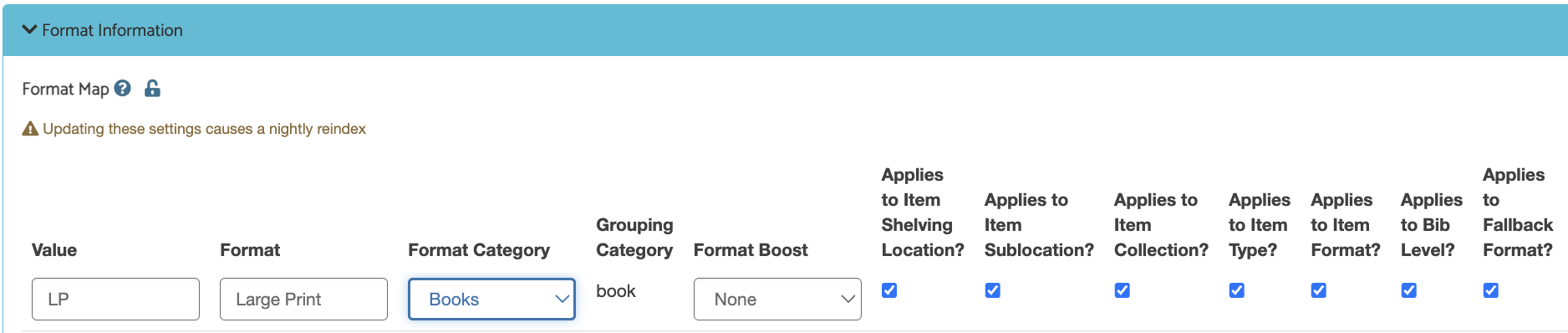
Example 1:
This example shows Aspen using the shelving location "LP" to determine format. Leave the "applies to shelving location" checkbox selected. Everything shelved in "LP" will show up as a Large Print item regardless of what the item type is in the ILS.
Example 2:
In this example, museum passes keep reverting to Library of Things format because their shelving location is LOT. For museum passes, Aspen should skip the shelving location, sublocation and collection and go straight to the item type. De-select every box until "applies to item type".
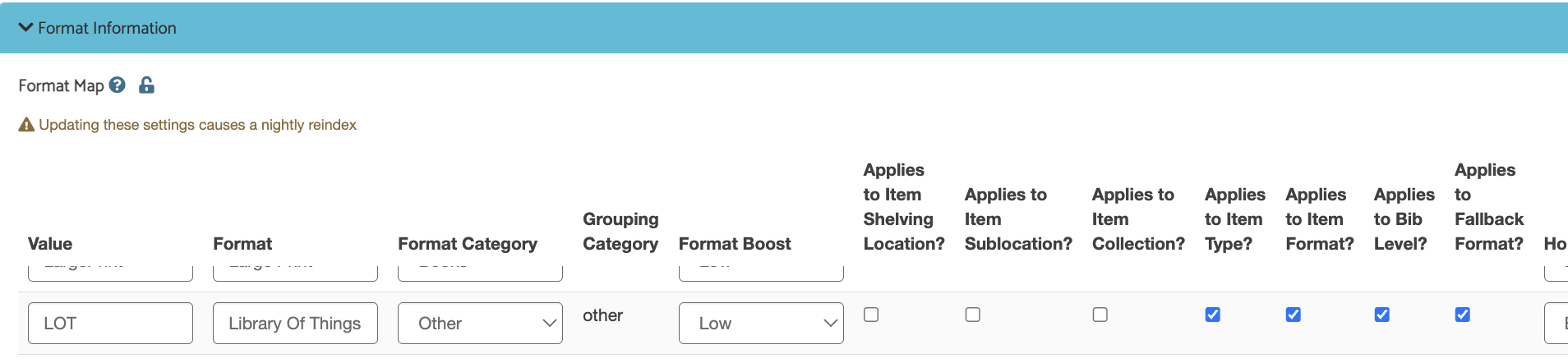
If you wanted all items to use item type from the ILS to determine format, de-select the shelving location, sublocation, and collection boxes for every row.
A Note About the CART Shelving Location
Koha has a temporary shelving location of CART that is used to hold returned items until re-shelved. This setting can affect the way a format appears in Aspen if an item's shelving location is used to determine the format. Some workarounds include:
- adding CART to the format map and translating it to something useful, like "Recently Returned"
- adding CART to the format map and de-selecting the "applies to shelving location" checkbox while making sure there is another authorized value that can be used to determine format (i.e. collection, itype, etc).
A Note About the Large Print check
Aspen has a setting that can be enabled to check the MARC record for large print indicators. This is particularly useful if 'Item Record' is being used to determine format but there is not a specific 'Large Print' item type. To enable this setting go to Aspen Administration > ILS Integrations >Indexing Profiles>Check Record for Large Print.
When enabled and the record contains Book and/or Large Print formats, a search of the bib record for 'Large Print' indicators will be performed. The Help Center lists the
relevant MARC fields that will be searched.
Troubleshooting the Large Print Check
If the diagnostics indicate that the "Large print check was skipped due to other formats on the record" double check that the only formats on the record were BOOK and/or LARGE PRINT. Examples of formats that will not trigger the check are: Book-Large Print, New Large Print, New Book.


