Koha 25.11: Managers' Overview
Overview
This document is intended for managers who want to evaluate how select new features may impact day-to-day operations, and whether staff training may be needed to take advantage of enhancements in this upgrade. It is not intended to replace resources on the 25.11 Upgrade Hub including community release notes, the manual, Monday Minutes, the What’s New webinar, or other articles discussing upgrade features in the ByWater Solutions Knowledge Base, and it does not cover every new feature and enhancement. Rather, it is a selection that we anticipate may lead to workflow changes or about which managers are likely receive questions from staff.
To use this document, we recommend reading each linked bug, reviewing the notes below, and evaluating internal policies and practices to determine whether workflow changes or staff training are necessary.
If your library has questions about any of the features in 25.11, please submit a ticket with 25.11 in the subject and we will be happy to help!
Acquisitions
See Administration for Bug 35761 - Add an administration editor for FTP and SFTP servers, Bug 39190 - Rework new (S)FTP classes to be polymorphic classes, and Bug 38489 - EDI should be updated to use the new FTP/SFTP Servers management page
Administration
General
Bug 37661 - Disable/Enable Bookings
This introduces a new system preference called EnableBooking: "[Enable]/[Disable] the booking module". If this is set to [Disable], Koha will automatically hide these bookings-related features:
Patron accounts - 'Bookings' tab:
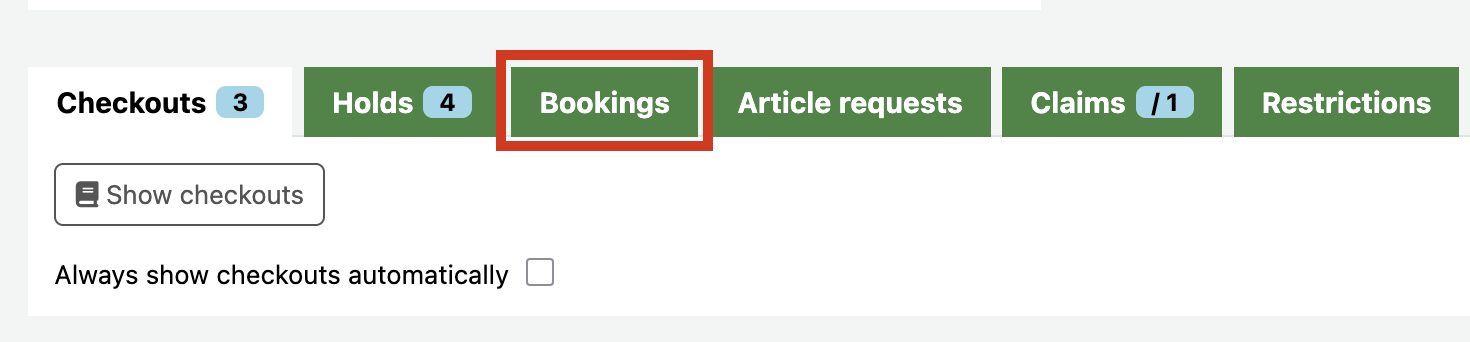
Patron accounts - 'Bookings' tab:
Circulation - 'Bookings to collect' button:
Bib records - 'Bookable' tab:
Items tab in bib records - 'Bookable' option:
Note that the 'Bookable' option in Item types settings and the 'Bookings' column in the Item types table will still show when EnableBooking is set to [Disable].

Any ByWater Solutions partners who requested custom code to hide the features above prior to this upgrade are encouraged to submit a ticket requesting that we remove the code now that it is no longer needed.
Bug 35761 - Add an administration editor for FTP and SFTP servers, Bug 39190 - Rework new (S)FTP classes to be polymorphic classes, and Bug 38489 - EDI should be updated to use the new FTP/SFTP Servers management page
Server and credential information for FTP and SFTP connections, including EDI, are now all configured in Administration > File transports.
 Access to this function requires the 'Manage file transports (manage_file_transports)' permission under the 'Manage Koha system settings (Administration panel) (parameters)' group.
Settings include the file path, login details, and upload/download directories:
Notes about each setting:
- Name: This is the name that will be visible for selection in EDI accounts.
- Transport: Defaults to SFTP, but FTP is also available.
- Host: The FTP/SFTP address - for instance, ftp.brodart.com.
- Port: Defaults to 22, which is the correct port for SFTP connections. This should be changed to 21 for FTP connections.
- Passive mode: This doesn't apply to SFTP connections, and will default to On (Recommended)/Enabled (Recommended) for FTP connections. There is generally no need to adjust this.
- Authentication mode: In nearly all cases, this will stay at the default of Password-based. If a ByWater Solutions partner has a vendor who recommends another option, please submit a ticket with us for discussion.
- Key file: Leave blank unless otherwise discussed.
- Remote download directory and Remote upload directory: These will be provided by your vendor.
- Debug mode: This can be set to Disabled in most cases. It can be updated to Enabled if needed to troubleshoot connections.
When saving a new connection or editing an existing one, staff will be presented with a confirmation screen. For SFTP connections, saving will test the connection:
For FTP connections:
Libraries
who access this feature will most commonly do so for EDI connections.
Instead of configuring EDI FTP/SFTP settings in Acquisitions (or
Administration) > EDI accounts, the actual server details will now be created and edited in
File transports.
Existing FTP/SFTP configurations for EDI set up in Acquisitions (or Administration) > EDI accounts should automatically move to File transports at the time of upgrade.
Since EDI connections will now be configured in File transports instead of in EDI accounts, libraries with multiple accounts for the same EDI
vendor will no longer need to enter their credentials multiple times (as long as the credentials are the same between accounts for the same vendor, as is typical). Instead, staff will enter credentials once per vendor in File transports, and then select the proper transport for each vendor account in EDI accounts:
Note the handy link to Administration > File transports that makes it easy to view/edit connections!
The EDI accounts table will show whether a transport is selected, and if so, whether it has been used or has errors. If it has not yet been used:
If there are errors, or no file transport is selected:
Bug 37893 - Migrate some SIP configuration into the staff interface
Libraries' SIP details are now stored in the staff interface instead of in a SIPConfig.xml file. This means that libraries who are comfortable doing so can create and modify their own SIP configuration details in Administration > Self-service circulation (SIP2).
Existing SIP configurations will automatically migrate to Self-service circulation (SIP2) at upgrade.

Libraries
who are not versed in SIP configuration are encouraged to continue submitting tickets to request
ByWater Solutions' assistance with SIP setup and modification.
Bug 26993 - Allow StoreLastBorrower to retain a locally-defined number of previous borrowers
The StoreLastBorrower system preference now has an option for the number of borrowers to retain in the items_last_borrower table: "Store the last [#] patron(s) to return an item. This setting is independent of the opacreadinghistory and AnonymousPatron system preferences. Leave empty or set to 0 to disable the preference."
The number of borrowers indicated in the system preference will show in the 'Last returned by' entry on the Items tab:
Since the data is stored in its own table, increasing the number isn't retroactive. The higher number of borrowers will only be stored and thus displayed for returns moving forward.
If the number in StoreLastBorrower is reduced, any history beyond the new lower threshold will be automatically deleted. For instance, if it is set to 3 but then changed to 2, record of the oldest borrower's return will be deleted from items_last_borrower. If the number is increased back to 3, the oldest borrower's return won't re-appear since the data has been cleared.
Logs
Bug 9762 - Log circulation overrides
When circulation actions take place by override, there are now notes in logs explaining the policy that was overridden:
This can help managers troubleshoot circulation questions and track patterns in overrides.
Bug 22632 - Add logging of merged patrons
Patron account mergers are now included in patron logs under the new Merge option under 'Actions'. This is part of standard patron modification logs, so systems with BorrowersLog set to "[Log] changes to patron records and patron restrictions" will automatically have access to this history moving forward.
Managers can find merge history for a specific patron from their 'Modification log' tab:
Note that the merged patron is identified by their card number.
Alternately, a patron's modification log can be filtered to only search for Merge in 'Actions':
Managers can also search for all patron account merges over a time period from Tools > Logs by selecting the Patrons in 'Modules' and Merge in 'Actions':
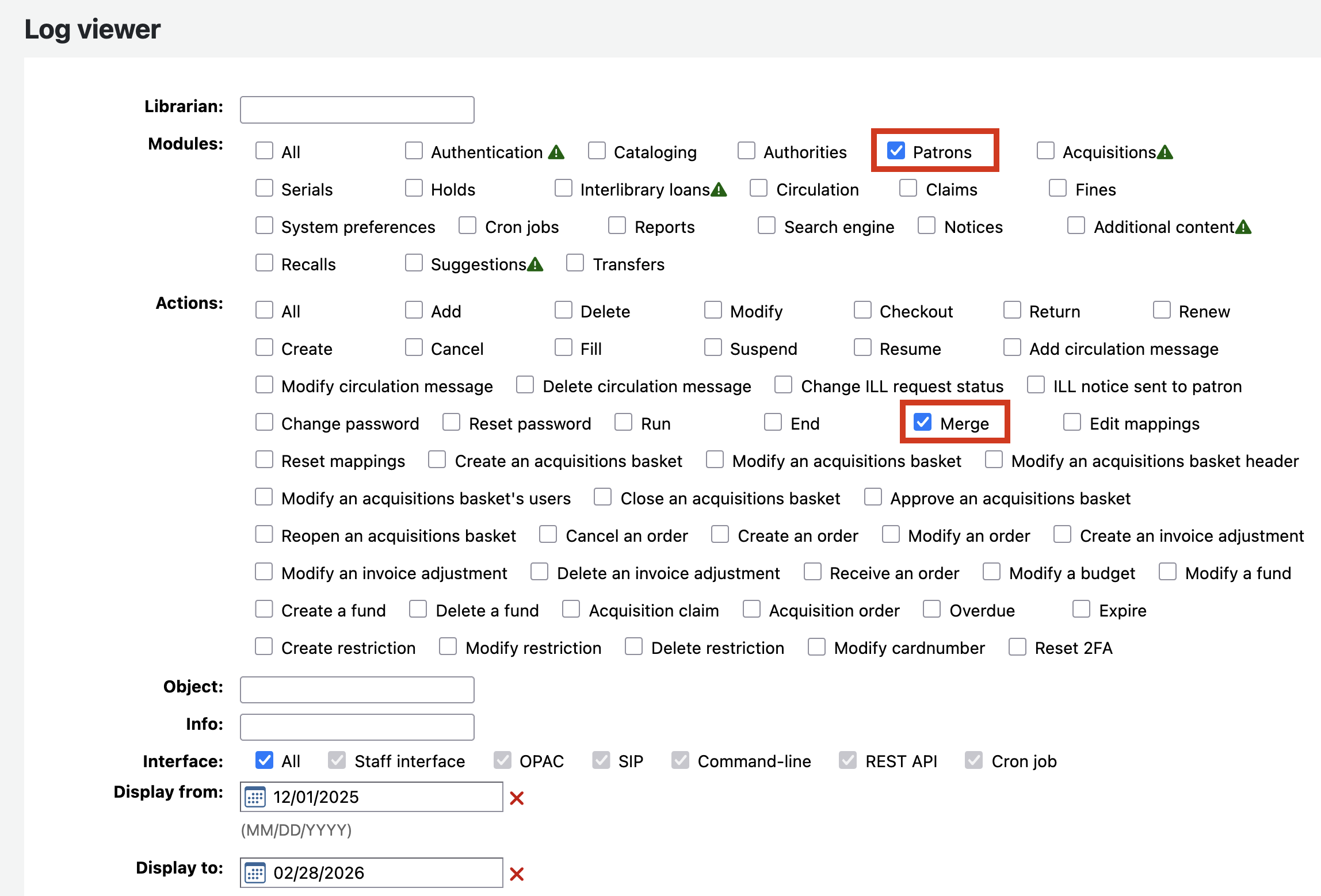
Since merged borrowers are considered deleted, managers can use the card number from this log to find details about the merged account in the deletedborrowers table. For instance, a simple report could be:
SELECT db.borrowernumber, db.surname, db.firstname, db.preferred_name, db.email, db.branchcode, db.dateenrolled
FROM deletedborrowers db
WHERE db.cardnumber = <<Deleted patron's card number>>
Cataloging & catalog display
Bug 40777 - 500 Error: Something went wrong when loading the table Should Exit Cleanly
Previously, if the Holdings table failed to load properly due to missing item types, home libraries, or holding libraries, staff had no way other than reports or opening each individual item for editing to see which item(s) were at fault and what problem(s) needed to be addressed:
This enhancement adds an 'Audit' button in the bib toolbar to diagnose issues loading the Holdings table, as well as a hint in the error modal for missing item types:
Items that are missing an item type will display the error modal as shown above. If items are missing a home or holding branch, the modal won't show, but the Holdings table won't load properly:
Staff can click the 'Audit' button to diagnose the issue(s):
From here, they can go to Edit > Manage items, and then open the applicable item(s) for editing.
Bug 29980 - Validate ISBN when cataloguing bibliographic records
This enhancement adds a plugin that staff can use to validate ISBNs for new and existing bibs. Validations are performed against https://metacpan.org/pod/Business::ISBN::Data.
This feature must be enabled in each framework your library uses. To enable, go to Administration > MARC bibliographic frameworks > [choose framework] > [open 020$a for editing], then choose the 'validate_isbn.pl' under Plugins:
Repeat with every framework for which you would like this feature enabled.
Once enabled, if staff enter an invalid ISBN while creating or editing a bib, a modal will appear after clicking out of 020$a:
The field will remain highlighted in yellow until the issue is resolved. Note that the index card icon next to the field indicates that the plugin is in use:
The plugin looks at numbers only, so additional values such as : or (pbk.) after the ISBN number will not interfere with its function.
There are some caveats with this feature:
- If staff opens an existing record for editing that has an invalid ISBN, the modal will only appear if they click into 020$a and then back out of the field.
- The plugin only validates that the ISBN exists per the link above. It does not validate that the ISBN is correct for that title.
- Staff are not prevented from saving a record with an invalid ISBN.
- At this time, the plugin is only available for the basic catalog editor. It is not available in the advanced catalog editor or when adding a new record from the Acquisitions module.
Bug 38330 - Make bib-level suppression a biblio table field instead of part of a MARC tag
The biblio and deletedbiblio tables have a new field to capture bibs that are suppressed using 942$n called opac_suppressed. Suppression will still happen at the MARC level, and this does not change the function of 942$n - staff will still suppress bibs using 1 (for Yes). The field
will default to 0 (No).
The enhancement will make reporting on suppressed bibs simpler, and in some cases faster! Prior to this enhancement, reports on suppressed bibs needed to refer to the actual MARC via the biblio_metadata table, which requires more complex syntax and can run slowly. Now, however, information about suppression is copied into the biblio (or deletedbiblio) table, which means that it's easier to display that data in biblio/deletedbiblio reports, and that reports on suppressed bibs should run faster.
For example, prior to this enhancement, a basic report to identify suppressed bibs could have been:
SELECT biblio.biblionumber, biblio.title
FROM biblio_metadata
JOIN biblio ON ( biblio_metadata.biblionumber = biblio.biblionumber )
WHERE ExtractValue( metadata, '//datafield[@tag="942"]/subfield[@code="n"]' ) = '1'
FROM biblio_metadata
JOIN biblio ON ( biblio_metadata.biblionumber = biblio.biblionumber )
WHERE ExtractValue( metadata, '//datafield[@tag="942"]/subfield[@code="n"]' ) = '1'
That same report could now be written as:
SELECT biblionumber, title
FROM biblio
WHERE opac_suppressed = 1
FROM biblio
WHERE opac_suppressed = 1
It is also now easier to see suppression information in general biblio and deletedbiblio reports, since opac_suppressed can be included as a column like any other field from those tables.
Existing reports written using the biblio_metadata should still work, so there is no need to update them unless you find that they run slowly. But for new reports, we recommend using the opac_suppressed field from the biblio or deletedbiblio tables instead of biblio_metadata for optimal performance and ease of use.
Bug 39860 - Add a way to allow for additional/custom MARC fields in the record display
Libraries often want to display additional MARC fields in search results and/or record display. In the past, this could sometimes be accomplished using custom code, but such customizations were not always possible, could break with upgrades, and were more complex for libraries to maintain or edit. With the new Record display customizations feature, libraries can add fields to search result, bib, and list display with no coding knowledge required!
In Tools > Record display customizations, select the 'New entry' button:
The same 'Display location' options are available for the staff interface and the OPAC:
- Search results - StaffResultsPage and OPACResultsPage
- Lists - StaffListPage and OPACListPage
- Full bib display - StaffDetailPage and OPACDetailPage
Managers can use 'Library' to limit custom displays to a single location. 'Publication date' is required, and 'Expiration date' is optional.
'Appear in position' functions like the same field in News: 0 is first/at the top, below that is 1, and so on. This is useful if your library is displaying multiple custom tags.
Note that 'Display location' and 'Library' both allow only a single selection. If your library wants the same custom display to show in multiple places (for instance, StaffDetailPage and OPACDetailPage) or for a subset of libraries, you will need to create multiple entries. Fortunately, the same code can be copied and pasted into multiple entries to have the same custom display show in each location.
Custom display content is formatted using template toolkit. This can look intimidating, but in the vast majority of cases, only the tag, subfield, and label will need to change to reflect what your library wants to display. You can copy these basic structures and edit the green elements based on your needs.
For single tags/subfields:
[% IF record.subfield('TAG' , 'SUBFIELDCODE') %]
<span class="results_summary">
<span class="label">LABEL: </span>
[% record.subfield('TAG' , 'SUBFIELDCODE') %]
</span>
[% END %]
<span class="results_summary">
<span class="label">LABEL: </span>
[% record.subfield('TAG' , 'SUBFIELDCODE') %]
</span>
[% END %]
For tags/subfields that are repeated:
[% IF record.subfield('TAG' , 'SUBFIELDCODE') %]
<span class="results_summary">
<span class="label">LABEL: </span>
[% FOREACH f IN record.field('TAG') %]
[% f.subfield('SUBFIELDCODE') %]
[% END %]
</span>
[% END %]
<span class="results_summary">
<span class="label">LABEL: </span>
[% FOREACH f IN record.field('TAG') %]
[% f.subfield('SUBFIELDCODE') %]
[% END %]
</span>
[% END %]
For instance, a formatted entry could look like this:
If this entry is set for the StaffResultsPage, the custom tag will appear in staff interface search results as:
If it's set for StaffDetailPage, the full bib will display as:
And if it's set for StaffListPage, the custom tag will show in a list as:
Repeated tags/subfields will display with a period between entries. For instance, a record with multiple 521$a subfields in OPACResultsPage will show as:
If your library has been using custom code to display information in any of these locations, please submit a ticket for assistance removing the code.
Bug 40070 - Make appending published date to serial enumeration optional on detail pages
This bug introduces the system preference DisplayPublishedDate: "[Show]/[Don't show] date published for a serial issue (item) on OPAC or staff detail page." It will be set to [Don't show] by default.
When it is set to [Show], the publication date for serial items will automatically show in the Holdings table along with issue details such as volume and number.
In the staff interface, the date will show in the 'Serials enumeration/chronology' column:
In the OPAC, the date will be appended to numbering details in the 'Vol info' column:
If the setting remains at [Don't show], the column will retain its current behavior of only displaying the item's numbering pattern details:
Circulation
General
Bug 20644 - Per itemtype setting for CheckPrevCheckout
With this enhancement, the CheckPrevCheckout system preference can now be overridden based on item type in addition to patron category.
Previously, the options for this system preference were [Do], [Do not], [Unless overridden by patron category, do], and [Unless overridden by patron category, do not]. The latter two are now [Unless overridden by patron category or by item type, do] and [Unless overridden by patron category or by item type, do not].
If the system preference is set to [Unless overridden…], every item type will have a 'Check for previous checkouts' option:
This setting will work for item type overrides the same way that it does for patron category overrides. If the system preference is set to [Unless overridden by patron category, do] and an item type is set to 'No and override system preferences', Koha will not check for previous checkouts for that item type. Likewise, if the system preference is set to [Unless overridden by patron category, do not] and an item is set to 'Yes and override system preferences', Koha will check for previous checkouts for that item type.
Since Koha now looks at both item type and patron category overrides, there may be instances where they conflict:
- If the system preference is set to [Unless overridden by patron category, do] and either the item type or the patron category is set to No, Koha will not check for previous checkouts.
- If the system preference is set to [Unless overridden by patron category, do not] and either the item type or the patron category is set to Yes, Koha will check for previous checkouts.
If CheckPrevCheckout is set to [Do] or [Do not], the 'Check for previous checkouts' option won't show in item type (or patron category) settings. However, if CheckPrevCheckout is set to [Unless overridden...], then changed to [Do] or [Do not], and then is later changed to one of the [Unless overridden...] options, any previous setting for a given item type in 'Check for previous checkouts' will be retained and reinstated.
This is the warning screen that will appear if a transaction triggers the check (based on the system preference, item type, and patron category settings):
Staff should continue to be mindful of checking the 'Remember for the session for this patron' option since this confirmation box is used for multiple types of overrides. For instance, if the confirmation alert shows for a patron because they have overdue items or fines and staff select the 'Remember for the session for this patron' box, and then the staff member scans an item that normally would trigger the confirmation for a previous checkout, they will not get a warning about the previously checked out item. Similarly, if someone is checking out multiple previously-checked out items and staff check the 'Remember for the session for this patron' box for the first previously checked-out item, the confirmation screen will not show for any additional item types that would otherwise trigger the confirmation screen.
The item type setting for CheckPrevCheckout works with batch checkout feature. If staff try to check out a previously-checked out item using batch checkouts, they will see this warning screen:
Bug 23010 - If an item is checked out or in transit it should not be able to be marked withdrawn
This enhancement introduces the system preference PreventWithdrawingItemsStatus: "Prevent the ability to withdraw items with the following statuses [options: Select all, Checked out, In-transit]." By default, no options are selected.
This feature works when attempting to withdraw items either from the 'Items' tab or from the full item editing screen, and if an item can't be withdrawn, the error message will note the reason:
- If a staff member tries to withdraw a blocked item from the 'Items' tab, the error message will be Cannot withdraw an item in transit or Cannot withdrawn checked out item.
- From the full item editing screen, the error messages are Error saving item: In transit item cannot be withdrawn and Error saving item: Onloan item cannot be withdrawn.
If staff use batch item modification, items that can’t be withdrawn due to the system preference will be skipped, but other items will still be processed normally. However, per Bug 41884 - Job report for batch item modifications that fail due to PreventWithdrawingItemsStatus has no details on failed items, note that the error message on results screen doesn't provide details on which items couldn't be withdrawn:
Bug 30331 - Allow RenewalPeriodBase behavior to differ between manual and automatic renewals
RenewalPeriodBase is now split into two separate system preferences, giving libraries more flexibility in how they calculate renewal periods.
Previously, libraries had to decide if due dates for all renewals, whether manual or automatic, should be based on the date the renewal was processed or on the checkout's original due date. This sometimes caused frustration for libraries who allowed both types of renewals. For example, if RenewalPeriodBase was set to [the current date] but automatic renewals processed two days ahead of items' due date, patrons could feel like they 'lost' days since the renewal period was, in effect, two days shorter than the original checkout. Conversely, if RenewalPeriodBase was set to [the old due date of the checkout], patrons could renew items long before they were actually due to 'stack' loan periods and guarantee themselves a longer checkout.
Instead of RenewalPeriodBase, libraries now have two options:
- AutomaticRenewalPeriodBase: "When renewing checkouts automatically, base the new due date on [the old due date of the checkout/the current date]."
- ManualRenewalPeriodBase: "When renewing checkouts manually, base the new due date on [the old due date of the checkout/the current date]."
At the time of upgrade, the value in RenewalPeriodBase will be copied to both of the new system preferences.
With this new flexibility, libraries can fine-tune how renewals are calculated depending on the type of renewal. For instance, if automatic renewals happen 2 days before items are due and your library wants to ensure that patrons don't 'lose' days on the renewal, AutomaticRenewalPeriodBase could be set to [the old due date of the checkout]. Meanwhile, ManualRenewalPeriodBase could be set to [the current date] so that patrons can't 'stack' loan periods by renewing items early.
Holds
Bug 36135 - Add tool to batch modify holds
Previously, batch modifications of holds could only be performed from the database, which meant submitting a ticket to ByWater Solutions' Data team for assistance. With this enhancement, staff with the new 'Perform batch modification of holds (batch_modify_holds)' permission (under 'Use all tools (expand for granular tools permissions) (tools)') can perform batch modifications on holds in Koha directly from the staff interface.
This feature is available in Tools > Batch modify holds:
To start, staff will search for holds to modify based on expiration dates, pickup library, status, and more. The available criteria are:
- Expiration date from and Expiration date to: Holds expiring starting on a date ('from'), ending on a date ('to'), or use both for a range. Expiration dates include system-set (per DefaultHoldExpirationdate, if applicable) and patron-set expiration dates for unfilled holds, as well as filled hold expiration dates (as set by ReservesMaxPickUpDelay).
- Libraries: Holds' pickup library. If left blank, Koha will look for holds set for pickup at all locations. Multiple selections are allowed.
- Found status: This also allows multiple selections. The options are:
- 'No status' excludes holds with any found status (in transit, in processing, and waiting).
- 'In transit' means holds that have triggered to fill and are currently in transit to their pickup library.
- 'In processing' means holds that need processing per HoldsNeedProcessingSIP.
- 'Waiting' means holds that have been filled and are waiting on the holds shelf for patron pickup.'No status' is not the same as leaving this field blank. If this field is left blank, Koha will look for holds with any of the found statuses above and for those without a found status.
- Suspended: Choose not suspended, suspended, or leave blank for both.
- Suspended until from and Suspended until to: Date range for suspended holds.
- Hold note: Searches the contents of the 'Notes' field if a note exists on the hold.
Once holds are identified, staff can change their expiration date or library, suspend (with or without a suspension expiration date), unsuspend, add a new hold note, or clear any existing hold notes:
For example, North Branch needs to close for a building emergency from 3/1 to 3/7, so their manager wants to extend the expiration date for all filled holds set to expire during that time to allow patrons extra days to pick up their items. To find these holds, they would use the following criteria:
Koha will find holds matching the criteria above. Staff then select the holds they want to modify (individually, or by using 'Select all visible rows'), select their modification(s), and then click 'Modify holds'. In this example, they would change these holds' expiration date to 3/10:
The results screen will show modified holds, including links to bibs and patrons:
Note that the tool cannot update the pickup library for holds with any found status (in transit, waiting, or in processing):
There are a few caveats to using this tool:
- It will not prevent staff from updating pickup locations to disallowed libraries (see Bug 41882 - Batch hold modification tool updates pickup locations to disallowed libraries).
- If a note is added to a hold that already had a note, the new note will replace, not be appended to, the prior one.
- Patrons are not automatically notified about changes to pickup location, suspension status, or expiration date, so libraries should communicate that separately as needed. (Changes will be reflected in their OPAC/Aspen accounts, but no new notice is sent.)
- At this time, changes using the batch hold modification tool aren't logged (see Bug 41883 - Modifications using batch hold modification tool aren't logged).
This is a powerful tool to help libraries manage holds, especially when unforeseen circumstances like unexpected closures arise!
Bug 15516 - Allow to place a hold on first available item from a group of titles, Bug 40529 - Update how hold groups work, Bug 40517 - Allow grouping existing holds, Bug 40613 - Allow ungrouping holds, and Bug 40552 - Allow selecting all holds from a group
This new feature allows staff and patrons to place a hold on the first available item from a user-defined group. For instance, if a patron wants any format of a title for their book club, they could create a hold group with holds on the book on CD, standard print, and large print versions of the title. Or if they want a Canadian travel guide but don't have a preference between Lonely Planet, Fodor's, and Rick Steves, they could create a hold group from those three bibs.
Note that this section will
provide an overview of this feature, and that a forthcoming Help
Center article will discuss it in more depth.
This feature is optional with the new system preference DisplayAddHoldGroups: "[Enable/Don’t enable] the ability to create hold groups which are fulfilled by one item." Set it to [Enable] to begin using hold groups.
In the database schema, hold groups are identified by the column hold_group_id in the hold_groups table. The hold_group_id column links to the reserves, old_reserves, and hold_groups_target_holds tables.
Placing/modifying: staff interface
In the staff interface, hold groups can be created at the time holds are placed or after the fact from already-placed holds.
To create hold groups directly from search results, the system preference DisplayMultiPlaceHold must be set to "[Enable] the ability to place holds on multiple bibliographic records from the search results". If your library allows item-level holds, DisplayMultiItemHolds must be set to "[Enable] the ability to place holds on different items at the same time in staff interface and OPAC."
To create a hold group at the time holds are placed, start the same way as placing 'normal' holds: search for titles, select the titles that should be grouped, and click 'Place hold'. On the 'Hold details' screen, check the 'Treat as hold group' box to make this a hold group (rather than separate holds on each of the selected bibs), then click 'Place holds':
On the bib's 'Holds' tab, holds that are part of a group will have a link to the hold group in the Details column:
Clicking on 'hold group' in the holds table brings up a modal with links to all of the bibs in the hold group:
In patron accounts, the Holds table now has a 'Hold group' column. The number in that column indicates holds that are part of a group. Holds with no value in that column are standard, non-grouped holds:
Hold groups can also be created from existing 'standard' holds. This is the same process staff will use to add a separate hold to an existing hold group. Starting at the patron's Holds tab, select the holds that should be grouped, then click 'Group selected':
Staff will see a confirmation screen, including a warning that already-grouped holds will be moved. Click 'Group' to proceed:
When holds grouped this way were already part of a group, this process technically creates an entirely new hold group rather than updating the existing one. This means that they will get a new hold_group_id. After grouping, the Holds table will be:
Placing: OPAC
For bib-level hold groups, patrons will select multiple titles from search results, and then click 'Place hold'. On the 'Placing a hold' screen, they will select the 'Treat as hold group' option:
In the OPAC, hold groups are noted with '(part of hold group)' under each title:
If patrons click on that text, the table will expand to show details of each group:
There is no way for patrons to group existing 'standard' holds from the OPAC. If a patron wishes to group holds that they have placed separately, they should either contact the library for assistance or cancel the existing holds and re-place them as a group.
Here is the corresponding staff interface view for that patron:
In the staff interface, clicking on the number in the 'Hold group' column will bring up a modal with options to select all holds in the group, or ungroup the holds:
Clicking 'Select group holds' from that modal will select all of the holds in that group, which is helpful if staff want to cancel, suspend, or unsuspend all holds in the group. Clicking 'Ungroup holds' will retain the holds, but will ungroup them so that they behave like 'standard' holds.
Note that hold groups can be bib-level, item-level, or a combination.
Filling group holds using the Holds queue
At this time, if multiple bibs/items from the same hold group are available, they will all show on the Holds queue (see Bug 42054 - Group holds and real time holds queue: multiple titles show at once). Also, note that the Holds queue does not have any indication that a title is part of a hold group (see Bug 41983 - Holds Queue should show when holds are part of a group).
At this time, if multiple bibs/items from the same hold group are available, they will all show on the Holds queue (see Bug 42054 - Group holds and real time holds queue: multiple titles show at once). Also, note that the Holds queue does not have any indication that a title is part of a hold group (see Bug 41983 - Holds Queue should show when holds are part of a group).
Once an item that satisfies a group hold is checked in and fills the
hold, other titles from the group will not trigger to fill the hold. However, libraries using the real-time holds queue should note that filling a group hold does not trigger a rebuild of the holds queue (see Bug 42055 - Real time holds queue doesn't rebuild when hold from group hold is filled).
Filling group holds using Holds to pull
As with the Holds queue, if multiple items are available to satisfy a hold group, those multiple items will show in Holds to pull at the same time. However, Holds to pull does have a '(part of a hold group)' link, so staff should check that for groups before pulling multiple titles for the same patron:
Once an item that satisfies a group is checked in and fills the hold, other titles from the group will disappear from Holds to pull and will not trigger to fill the hold if checked in.
Checkouts before holds are filled
If a patron checks out an item that is part of a group hold before the hold has been filled, the other holds in the group will be automatically cancelled. This is the same behavior as non-group holds.
Working with filled group holds
When an item belonging to a group hold is checked in and fills the hold, note that the other bibs/items in the group will still show as on hold from the bib(s) and from patron’s account. However, as noted above, they will not trigger to fill the hold for that patron if checked in. (If other patrons are on the hold list, items will trigger to fill those other patrons' holds.) This is the expected behavior. Groups are retained even once a hold is filled in case, for instance, the filled hold has to be reverted - since the group still exists, the next available item will trigger without having to re-create the group.
Other holds from the group will automatically cancel once the filled hold is checked out.
Cancelling group holds
For unfilled group holds, cancelling an individual bib/item from the hold will not cancel the entire group. (If the group only has two bibs/items, the remaining hold will be automatically converted to a 'standard' hold.)
For filled holds that are part of a group, cancelling the waiting hold can optionally cancel the entire group.
Groups in hold history
Holds that belonged to a group where a different item filled the hold will show in patrons' hold history as Cancelled once the filled item is checked out. At this time, patrons' 'Hold history' tabs in the staff interface and in the OPAC do not show any information about the hold having been part of a group (see Bug 41955 - OPAC: Patron hold history table should show hyperhold/hold group information and Bug 41954 - Staff interface: Patron hold history table should show hyperhold/hold group information).
Logs
In hold logs, group holds can be identified by their hold_group_id:
Note that this is in addition to the reserve_id, and that reserve_id is the Object. The hold_group_id isn't a searchable Object, but managers can search using 'hold_group_id' => [#] in Info:
Bug 31698 - Add ability to move a hold to a new bibliographic record/item
This enhancement allows staff to move holds from one bib (or item) to another. If, for instance, a patron mistakenly placed a hold on the young readers' edition of a title but actually wanted the standard/original version, staff would have had to cancel the original hold on the young readers' bib and re-place it on the standard bib. Or if the only copy of a book on CD was too damaged to circulate (and wasn't going to be reordered), and staff wanted to move its holds to the Playaway version, they would need to cancel them (which could be done in bulk) and re-place all of them (which would have to be done one by one). With this enhancement, staff can now move one or more holds at a time instead of cancelling and re-placing!
This feature will be available to staff with the 'Move holds between items and records (alter_hold_targets)' permission (under 'Place and modify holds for patrons (reserveforothers)'). The 'Move selected' button will not show for staff without that permission.
Record-level holds
In this example, a patron mistakenly placed a hold on the standard print version of a title, but they actually want the large print version.
1. To move a bib or record-level hold, start by finding the bib number of the record that holds are moving to (that is, the target). This can be found in the bib's URL or at the top of the 'Items' tab.
2. Next, go to the 'Holds' tab of the bib that holds are moving away from, select the holds that need to move, then click 'Move selected' > 'Record level holds to a different record':
3. On the modal, paste the target bib number into the search box, then click 'Search':
4. Select the checkbox for 'Move all selected record level holds to this record' to enable the 'Move selected holds' button, then choose 'Move selected holds':
5. The success screen will have links to the bib the hold moved from and the bib that it moved to:
6. Staff should review the priority of moved holds and adjust accordingly. Moved holds will be placed at the bottom of the target's list, regardless of the date that holds were originally placed. This means that even if the moved holds were placed before existing holds on the target bib, the moved holds will have a lower priority (that is, they will be filled later even though they were placed earlier).
Item-level holds
In this example, a patron originally placed a hold on the 2026 copy of a travel guide. The 2026 copy is now lost, however, so they've asked that they hold be moved to the 2025 copy as the next most recent.
1. For items, start by identifying the barcode of the item that holds will be moving to (the target).
2. Next, go to the 'Holds' tab of the bib that holds are moving away from, select the holds that need to move, then 'Move selected' > 'Item level holds to a different item':
3. Paste in the barcode of the target item, then click 'Search'. Note that this example uses another item from the same bib, but this also works for moving holds to items on different bibs:
4. Check the box for 'Move all selected item level holds to this item' to enable the 'Move selected holds' button, then choose 'Move selected holds':
5. The success screen will have links to both bibs, similar to the success screen for bib-level moves.
6. As with moved bib-level holds, note that moved item-level holds will be placed at the bottom of the target's list, regardless of the date that holds were originally
placed. This means that even if the moved holds were placed before
holds on the target bib, the moved holds will have a lower priority
(that is, they will be filled later even though they were placed
earlier). Staff will want to review the priority of moved holds and adjust accordingly.
Both of the examples above moved a single hold, but the same process works for moving multiple holds at once.
There are some situations where holds will not successfully move:
- Holds won't move to a bib where holds aren't allowed per the circulation matrix ('Holds allowed (total)’'= 0) or 'Holds and bookings policies by item type', even if hold policies can be overridden and would successfully fill for the former. Here is the error message for both scenarios:
- Holds won't move if the target record only allows holds from patrons matching the item's home library per 'Holds and bookings policies by item type'. For example, a patron from Main has a hold on bib A. Staff tries to move the hold to bib B, whose only item belongs to North, and North only allows holds from North patrons:
On the other hand, holds will move and be unfillable if a library's 'Holds and bookings policies by item type' allows holds by patrons from any library, but pickup at the item's home library only. The hold pickup location will not automatically update to reflect the rule, and there is no indication that the rule has been broken. This is the case even if Library transfer limits prevent the item from sending to the (new, not allowed) pickup location. For example, a patron is from West, and their original hold on bib A is to be picked up at West. Bib B belongs to East, which allows holds from West patrons but only for pickup at East. Staff move the hold to bib B. The move is successful, but since the pickup location remains West, it will never trigger to fill. For further discussion, see Bug 41879 - Holds that move to a new bib can be unfillable.
Note that there are gaps in how moved holds are logged. See Bug 41880 - Logs for moved holds don't indicate original bib number/item number for details and discussion.
Bug 40335 - Holds queue does not allow multiselect
Staff can now multi-select collection codes and shelving locations in the holds queue:
Keep in mind that like Advanced search, Koha addresses multiple selections within a facet as OR, and between facets as AND. So if Non-fiction and Rare books are selected for Collection and Adult non-fiction is selected for Shelving location, the results will be (ccode = non-fiction OR rare books) AND (loc=adult non-fiction). This includes selections for item type and library as well.
Searching
Bug 37883 - Add a filter for staff search results to filter by library
This enhancement adds a convenient one-click button to allow staff to limit search result visibility by logged-in branch with the new system preference FilterSearchResultsByLoggedInBranch: "[Don't/Do] add a filter to the location column on staff interface search results to filter items by the library the user is currently logged into."
With the system preference set to [Do], catalog search results will have a new button on the right-hand side above the Location column. Initially, the button will read 'Show local items only' ('local' means the logged-in branch):
If staff click that button to filter results, the button will update to 'Show items in all libraries'. Clicking on that will return to the original results for all libraries:
If the staff member navigates away from the search results screen and then later performs another search, the results will default to the view they had set when they were last viewing search results.
Some libraries have custom code that performs a similar function to this new built-in feature. If your library has custom code for that purpose, please open a support ticket so that we can remove it.
Bug 38438 - Make Add persistent selections and batch operations to item search optional
The Item search form now has a 'Forget item selections from previous search' option to make Koha's ability to retain selections between item searches more flexible and user-friendly.
If some cases, libraries want Koha to 'remember' selections between searches - for instance, if a staff member needs to run a batch item modification on a group of results from multiple separate item searches. But oftentimes selections from subsequent item searches shouldn't be retained. Previously, this could only be done from the search results screen. This meant that staff either had to remember to clear their selections before leaving the first search result screen, or before making any selections on their new search results screen:
However, it's easy to overlook the 'Clear' option entirely, and it could be frustrating for staff to realize they needed to 'Clear' results from an earlier search once they had already started selecting results on subsequent searches.
While the 'Items selected: [#]' button is still available, the new 'Forget item selections from previous search' provides additional flexibility and more visibility. The option is clearly visible at the top of the Item search screen, and it is checked by default on initial search:
If it remains checked, any item
search results selected in previous searches will not be added
to selected results from the newly-performed search.
If staff click the 'Edit search' button above the Item search results table, ‘Forget item selections from previous search’ will retain the state (checked or unchecked) it had when the last search was performed.
Patrons
General
Bug 32581 - Update dateexpiry on categorycode change
This enhancement gives staff the option to automatically update patrons' account expiration dates when updating their patron category, instead of having to manually calculate and change it.
For instance, consider a library where NONRESIDENT patrons have a 6 month enrollment period, and RESIDENT patron accounts are enrolled for 12 months. When E.A. Poe registers as NONRESIDENT, their account would be set to expire 6 months from the original registration date. Two months later, however, they moves and is eligible to be a RESIDENT patron. When staff save the account updated with the new RESIDENT category, they will now have an option to automatically change their account expiration date:
Clicking 'Yes' will update the account expiration date to 12 months from the day the change is made.
Automatically updating expiration dates will calculate from the day the change is made, not from the original day of registration or the existing expiration date.
Clicking
'No' (or X to close the modal) will retain the original expiration
date. Staff can update it manually, if they wish, and when they renew their account, the renewal period will be 12 months per the RESIDENT patron
category settings.
Bug 40245 - Support option to display firstname in patron search results when different than preferred_name
This enhancement adds the system preference ShowPatronFirstnameIfDifferentThanPreferredname: "[Show/Don't show] a patron's firstname in search results if their preferred name is different."
If it is set to [Don't show], nothing changes about how patron search results will display. As is the case pre-25.11, a patron whose preferred name differs from their first name can still be searched by their first name even with the system preference set to [Don't show]:
If the system preference is set to [Show], the patron's first name will be in italicized brackets next to the preferred name in patron search, checkout search, and hold search results.
Full patron search:
Checkout search:
Hold search:
The first name will not show in 'Add guarantor' search.
Bug 41053 - Make notice contents searchable on notices tab of patron details
This enhancement is helpful for situations where staff want to know what notices a patron received about a given title. For instance, if a patron tells staff that they didn't receive a notification about an overdue item, the staff member may want to see if a notice was sent when deciding whether to write off fines. Previously, staff had to click on the title of each individual notice subject to check the contents. Now there is a 'Search' box where staff can enter any string of text (for instance, a partial title) to filter notices to only those that contain the search term:
From the filtered results, staff can click on the notice subject for details:
Bug 39532 - Script debar_patrons_with_fines.pl should not use MANUAL restriction type
The cron that allows libraries to automatically restrict patrons based on the amount they owe, regardless of items' overdue status, now uses the FINES type restriction. For details on how to set up and use this feature, see Automatically Place and Remove Fine-Based Restrictions.
Staff patrons
Bug 32682 - Add permission for viewing patron reading history and Bug 40364 - Add permission for viewing patron holds history
Instead of the Intranetreadinghistory (for circulation history) and IntranetReadingHistoryHolds (for holds history) system preferences functioning as global on/off switches for circulation and hold history visibility in the staff interface, two new permissions allow libraries to control which staff members can see patrons' history when those system preferences are enabled.
In addition to setting Intranetreadinghistory and/or IntranetReadingHistoryHolds to [Allow], libraries must also grant individual staff members two new permissions in the 'Add, modify and view patron information (borrowers)' permission section to see circulation and/or hold history in patron accounts:
- 'View checkout history (view_checkout_history)' - required to access patrons' 'Circulation history' tab
- 'View holds history (view_holds_history)' - required to access patrons' 'Holds history' tab
Staff members who don't have those permissions won't see the 'Circulation history' or 'Holds history' tabs even when Intranetreadinghistory and/or IntranetReadingHistoryHolds are set to [Allow].
Keep in mind that if patrons have their privacy set to 'Never', no data will show in those tabs even if Intranetreadinghistory and/or IntranetReadingHistoryHolds are set to [Allow] and staff members have the permissions above.
Bug 35830 - Add separate permission for Merging Patrons
The ability to merge patron accounts is now separated into its own permission instead of being part of the general 'Add, modify and view patron information (edit_borrowers)' permission. Any staff who should be able to merge patron accounts will need to be granted the 'Merge patrons (merge_borrowers)' permission under the 'Add, modify and view patron information (borrowers)' umbrella.
Bug 39145 - Differentiate between deleting or transferring public and shared lists
When staff members leave a library, they may have lists that managers want to retain. ListOwnershipUponPatronDeletion, the system preference that determines how public and shared lists are handled when staff patrons are deleted, previously had two options: "When
deleting a patron who owns public or shared lists, [change owner of
these lists]/[delete these lists]. All public or shared lists of this patron are either
deleted or transferred to a new owner according to your choice; other
private lists (not shared) are deleted." There is now a third option to provide libraries with added flexibility: [change owner of public lists, delete
shared lists].
OPAC
Bug 30633 - Move OPACHoldingsDefaultSortField to table settings configuration
The system preference OPACHoldingsDefaultSortField has been removed. Instead, the OPAC holdings table's default sort is now set in the 'Default sort order' option with the holdingst table, which is configured in Administration > Table settings > OPAC group > Table id: holdingst. Note that the value in OPACHoldingsDefaultSortField will not be migrated to table settings at upgrade. Any of the columns in that table can be used to sort, but it will default to item_itemtype.
Bug 40082 - PatronDuplicateMatchingAddFields isn't respected in the OPAC or the API
The system preference PatronDuplicateMatchingAddFields allows libraries to select fields that should be used for duplicate checks when creating new patron accounts. For instance, a library can set it to check for matches on first name, surname, and email address, and if the information entered into a new account matches an existing patron account, the new one will be flagged as a potential duplicate.
Previously, the system preference only applied to accounts created in the staff interface, but it now also checks for duplicates when patrons self-register through the OPAC or via API (including Aspen).
If the fields set in the system preference match, here is what patrons will see when they try to self-register using the Koha OPAC:
Here is the result when a duplicate is flagged using self-registration in Aspen:
Note that all of the selected fields have to match for an account to be flagged as a potential duplicate. For details on how null values in existing or new accounts are handled, see Bug 42018 - Inconsistent behavior for null values for fields selected in PatronDuplicateMatchingAddFields.
Notices
Bug 36114 - Port default TRANSFERSLIP notice to Template Toolkit syntax, Bug 36020 - Port default recall notices to Template Toolkit, and Bug 36127 - Port default HOLDPLACED and HOLD_CHANGED notices to Template Toolkit syntax
These notices are now built by default with Template Toolkit, which allows for added flexibility in notice customization.
If your library wishes to use the updated versions, click on the 'View default' button in notices' Email tab, and then 'Copy to template' to copy the code to to your notice for customization:
The new Template Toolkit default versions will not replace existing notices at upgrade, so no existing customization will be lost unless your library copies the new default(s) to any of the notices above.